FME Transformers: 2026.3
 Categories and Related Transformers
Categories
Geometries
Related Transformers
GeometryExposer
GeometryNameExtractor
GeometryNameSetter
MultipleGeometryFilter
GeometryCopier
Copies a feature's geometries onto itself.
Typical Uses
- Duplicating a feature’s geometries for further processing, creating a feature with multiple geometries or adding to one.
How does it work?
The GeometryCopier receives features with existing geometries and creates copies of those geometries (either selected or all) on the feature itself.
The copy is named as specified. If that name is already in use on the feature, the existing geometry will be discarded and the new one kept.
Input features that do not match the Geometry Selection (including those with invalid geometry) are output via the Output port, unaltered.
Examples
Example: Creating multiple geometries in different coordinate systems on a single feature
In this example, we have a set of island areas. We want to create multiple geometries in order to store multiple coordinate systems on a single feature.
The steps will be:
- Give the geometry a descriptive name.
- Make a copy of that geometry, with a new name.
- Reproject only the copy.
Note that the input features have one unnamed geometry, and are in a UTM coordinate system.
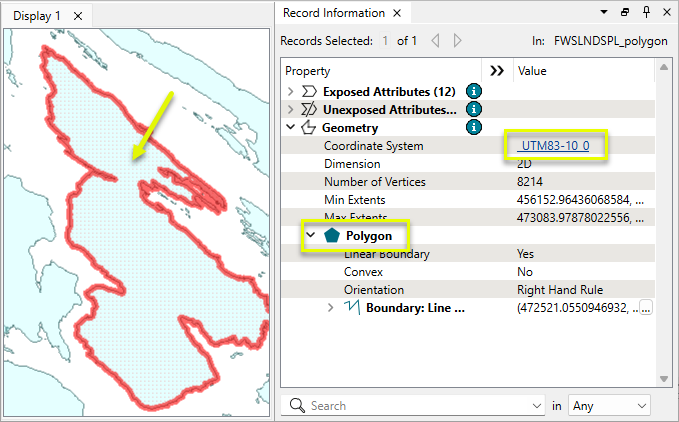
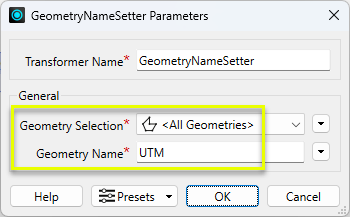
The features are routed into a GeometryNameSetter.

In the parameters dialog, the original geometry is given a name. As we want to have copies in different coordinate systems, we name this one UTM.
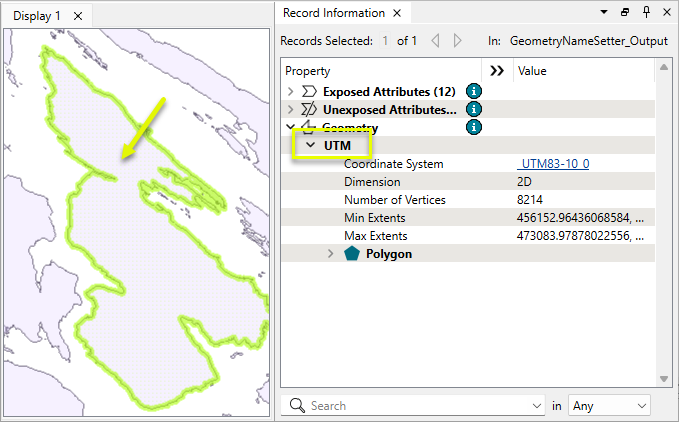
On output, the features still have one geometry but they are named.
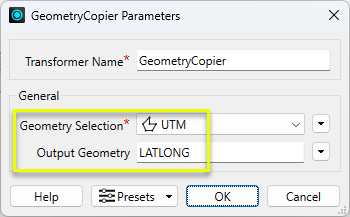
The features are routed into a GeometryCopier.

In the parameters dialog, a copy of the UTM features is made, and named LATLONG.
On output, the features have two geometries, each named. Note that they are otherwise identical and still in the same coordinate system.
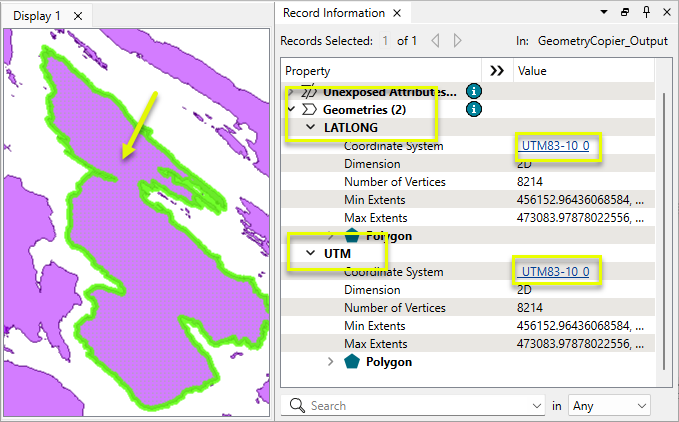
The features are routed into a Reprojector.
In the parameters dialog, the new LATLONG geometry is selected, and reprojected.
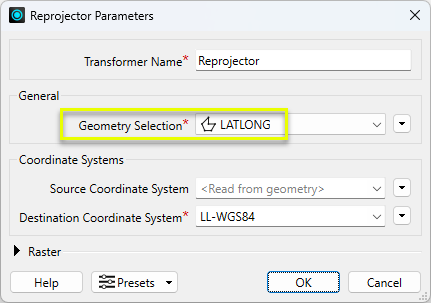
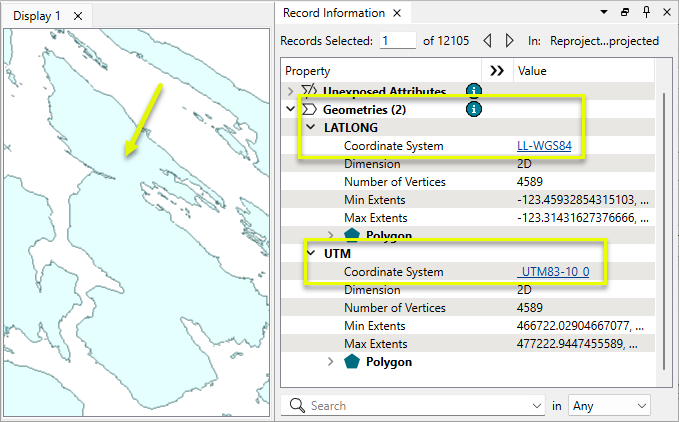
On output, the features have two geometries, in different coordinate systems.
Usage Notes
- If the input feature geometry is not named, the output features will have one named geometry (the copy) and one unnamed (the original). Unnamed geometries are referred to as <geometry>. Use the GeometryNameSetter to assign names.
Working with Multiple Geometries
Some formats, such as PostGIS, Oracle Spatial, and Microsoft SQL Server, support multiple geometries on a feature.
They must have unique names, and they have their own coordinate systems and a separate row in the Geometry Definition table.
Multiple geometries are a different concept from aggregates and multis such as MultiPoint.
Multiple Geometries Transformers
|
Transformer |
Use this to... |
|---|---|
|
Add a copy of a feature’s geometry onto itself, either creating or adding to multiple geometry. The copy can then be further processed. |
|
|
Create multiple geometries by merging features based on attribute values and expressions. See Geometry Merge Type > Preserve Distinct Geometries. |
|
|
Create multiple geometries by joining features on attribute values, using left, inner, or full joins. See Geometry Handling > Keep Both (Preserve Distinct Geometries). |
|
|
Assign names to geometries. |
|
|
Put all geometry names into an attribute or list attribute. |
|
|
Make a name available for geometry selection when it is not yet available to downstream transformers. |
|
|
Identify and route features that have multiple geometries. |
|
|
Remove specific geometries by name, or all geometries. Useful for going from multiple geometries to single. |
|
|
Place specific or all geometries into an attribute as a blob. May be useful when paired with the GeometryReplacer for performing transformations on geometry with transformers that do not have geometry selection. |
|
|
Restore geometry from an attribute blob value. |
Transformers with Geometry Selection
These transformers can operate on selected geometries.
Configuration
Input Ports
Input
Features with geometries to copy.
Output Ports
Output
Features with copied geometries, and any unmodified features.
Parameters
General
|
Geometry Selection |
Select the geometry to be copied. The selectable options will reflect the geometries available from the input features. If input features contain nameless geometries, <geometry> is also available:
|
|
Output Geometry |
Provide a name for the copied geometry. If the name specified is already in use on the input feature, the existing geometry will be discarded and the new one kept. When Geometry Selection is <All Geometries> and multiple copies are produced with duplicate names, a numeric index is automatically appended to create unique names, as in pipe > pipe_1, pipe_2, and so on. |
Editing Transformer Parameters
Transformer parameters can be set by directly entering values, using expressions, or referencing other elements in the workspace such as attribute values or user parameters. Various editors and context menus are available to assist. To see what is available, click  beside the applicable parameter.
How to Set Parameter Values
Defining Values
There are several ways to define a value for use in a Transformer. The simplest is to simply type in a value or string, which can include functions of various types such as attribute references, math and string functions, and workspace parameters.
Using the Text Editor
The Text Editor provides a convenient way to construct text strings (including regular expressions) from various data sources, such as attributes, parameters, and constants, where the result is used directly inside a parameter.
Using the Arithmetic Editor
The Arithmetic Editor provides a convenient way to construct math expressions from various data sources, such as attributes, parameters, and feature functions, where the result is used directly inside a parameter.
Conditional Values
Set values depending on one or more test conditions that either pass or fail.
Parameter Condition Definition Dialog
Content
Expressions and strings can include a number of functions, characters, parameters, and more.
When setting values - whether entered directly in a parameter or constructed using one of the editors - strings and expressions containing String, Math, Date/Time or FME Feature Functions will have those functions evaluated. Therefore, the names of these functions (in the form @<function_name>) should not be used as literal string values.
Content Types
| These functions manipulate and format strings. | |
|
Special Characters |
A set of control characters is available in the Text Editor. |
| Math functions are available in both editors. | |
| Date/Time Functions | Date and time functions are available in the Text Editor. |
| These operators are available in the Arithmetic Editor. | |
| These return primarily feature-specific values. | |
| FME and workspace-specific parameters may be used. | |
| Creating and Modifying User Parameters | Create your own editable parameters. |
Dialog Options - Tables
Table Tools
Transformers with table-style parameters have additional tools for populating and manipulating values.
|
Row Reordering
|
Enabled once you have clicked on a row item. Choices include:
|
|
Cut, Copy, and Paste
|
Enabled once you have clicked on a row item. Choices include:
Cut, copy, and paste may be used within a transformer, or between transformers. |
|
Filter
|
Start typing a string, and the matrix will only display rows matching those characters. Searches all columns. This only affects the display of attributes within the transformer - it does not alter which attributes are output. |
|
Import
|
Import populates the table with a set of new attributes read from a dataset. Specific application varies between transformers. |
|
Reset/Refresh
|
Generally resets the table to its initial state, and may provide additional options to remove invalid entries. Behavior varies between transformers. |




Note: Not all tools are available in all transformers.
For more information, see Transformer Parameter Menu Options.
Reference
|
Processing Behavior |
|
|
Feature Holding |
No |
| Dependencies | None |
| Aliases | |
| History |
FME Online Resources
The FME Community and Support Center Knowledge Base have a wealth of information, including active forums with 35,000+ members and thousands of articles.
Search for all results about the GeometryCopier on the FME Community.
Examples may contain information licensed under the Open Government Licence – Vancouver, Open Government Licence - British Columbia, and/or Open Government Licence – Canada.