FME Transformers: 2026.3
 Categories and Related Transformers
Categories
Geometries
GeometryExposer
Exposes geometry names so they can be accessed by downstream transformers and writers.
Typical Uses
- Making geometry names available in a workspace for further processing
- Explicitly declaring geometry names expected downstream in the workspace
How does it work?
The GeometryExposer makes unexposed geometry names visible so they can be used elsewhere in the workspace.
Names may be entered manually or imported from upstream feature caches. Known geometries can be selected from the drop-down menu.
Geometry names exposed by this transformer are visible in downstream schema-aware drop-downs in transformers such as the Reprojector, GeometryRemover, and GeometryNameSetter. They are treated as if they exist in the feature schema, even if they don’t yet exist in the data.
This transformer only exposes the geometry names - it does not ensure that valid geometry names are being exposed. Input features are not modified in any way.
Examples
Example: Exposing geometry names for renaming
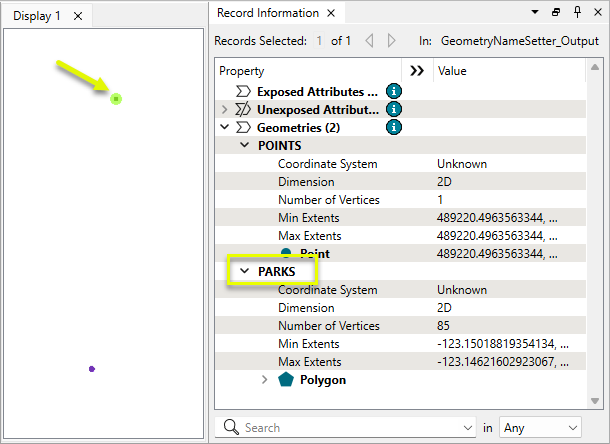
In this example, we have a set of features with multi geometry. Note that two geometries exist on the feature, and are named POLYGONS and POINTS. We want to rename them to something meaningful.
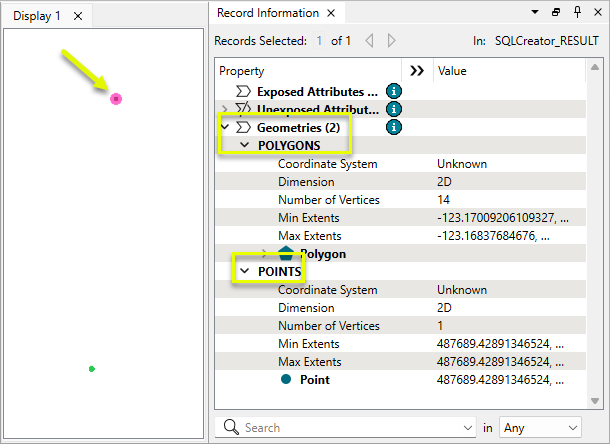
The features are routed into a GeometryNameSetter.

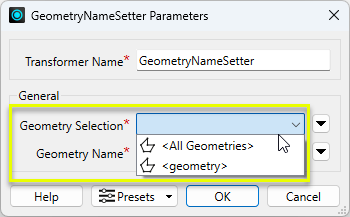
In the parameters dialog, note that the geometry names are not available for selection. They need to be exposed before renaming.
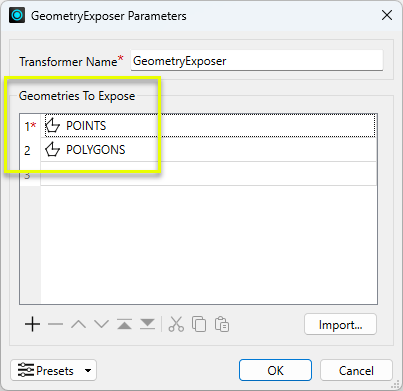
A GeometryExposer is added prior to the GeometryNameSetter.

In the parameters dialog, both geometry names are added.
Now the names are available for selection in the GeometryNameSetter.
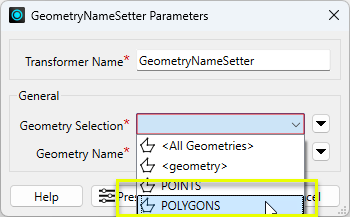
The selected name is changed.
Usage Notes
- Named geometries differ from geometry type names such as point, curve, and area. To retrieve geometry types, use the @GeometryType() feature function in any transformer that outputs attributes, such as the AttributeManager.
- This transformer exposes geometry names for use by transformers and writers, but does not add them to an attribute. The GeometryNameExtractor retrieves names into an attribute.
Working with Multiple Geometries
Some formats, such as PostGIS, Oracle Spatial, and Microsoft SQL Server, support multiple geometries on a feature.
They must have unique names, and they have their own coordinate systems and a separate row in the Geometry Definition table.
Multiple geometries are a different concept from aggregates and multis such as MultiPoint.
Multiple Geometries Transformers
|
Transformer |
Use this to... |
|---|---|
|
Add a copy of a feature’s geometry onto itself, either creating or adding to multiple geometry. The copy can then be further processed. |
|
|
Create multiple geometries by merging features based on attribute values and expressions. See Geometry Merge Type > Preserve Distinct Geometries. |
|
|
Create multiple geometries by joining features on attribute values, using left, inner, or full joins. See Geometry Handling > Keep Both (Preserve Distinct Geometries). |
|
|
Assign names to geometries. |
|
|
Put all geometry names into an attribute or list attribute. |
|
|
Make a name available for geometry selection when it is not yet available to downstream transformers. |
|
|
Identify and route features that have multiple geometries. |
|
|
Remove specific geometries by name, or all geometries. Useful for going from multiple geometries to single. |
|
|
Place specific or all geometries into an attribute as a blob. May be useful when paired with the GeometryReplacer for performing transformations on geometry with transformers that do not have geometry selection. |
|
|
Restore geometry from an attribute blob value. |
Transformers with Geometry Selection
These transformers can operate on selected geometries.
Configuration
Input Ports
Input
Features with named geometries.
Output Ports
Output
Features with exposed geometry names.
Parameters
General
|
Geometries To Expose |
Provide geometry names to expose. The order in which they appear here is the order in which they will appear in the Output port. Use Import to read names from any upstream feature cache. |
Editing Transformer Parameters
Transformer parameters can be set by directly entering values, using expressions, or referencing other elements in the workspace such as attribute values or user parameters. Various editors and context menus are available to assist. To see what is available, click  beside the applicable parameter.
How to Set Parameter Values
Defining Values
There are several ways to define a value for use in a Transformer. The simplest is to simply type in a value or string, which can include functions of various types such as attribute references, math and string functions, and workspace parameters.
Using the Text Editor
The Text Editor provides a convenient way to construct text strings (including regular expressions) from various data sources, such as attributes, parameters, and constants, where the result is used directly inside a parameter.
Using the Arithmetic Editor
The Arithmetic Editor provides a convenient way to construct math expressions from various data sources, such as attributes, parameters, and feature functions, where the result is used directly inside a parameter.
Conditional Values
Set values depending on one or more test conditions that either pass or fail.
Parameter Condition Definition Dialog
Content
Expressions and strings can include a number of functions, characters, parameters, and more.
When setting values - whether entered directly in a parameter or constructed using one of the editors - strings and expressions containing String, Math, Date/Time or FME Feature Functions will have those functions evaluated. Therefore, the names of these functions (in the form @<function_name>) should not be used as literal string values.
Content Types
| These functions manipulate and format strings. | |
|
Special Characters |
A set of control characters is available in the Text Editor. |
| Math functions are available in both editors. | |
| Date/Time Functions | Date and time functions are available in the Text Editor. |
| These operators are available in the Arithmetic Editor. | |
| These return primarily feature-specific values. | |
| FME and workspace-specific parameters may be used. | |
| Creating and Modifying User Parameters | Create your own editable parameters. |
Dialog Options - Tables
Table Tools
Transformers with table-style parameters have additional tools for populating and manipulating values.
|
Row Reordering
|
Enabled once you have clicked on a row item. Choices include:
|
|
Cut, Copy, and Paste
|
Enabled once you have clicked on a row item. Choices include:
Cut, copy, and paste may be used within a transformer, or between transformers. |
|
Filter
|
Start typing a string, and the matrix will only display rows matching those characters. Searches all columns. This only affects the display of attributes within the transformer - it does not alter which attributes are output. |
|
Import
|
Import populates the table with a set of new attributes read from a dataset. Specific application varies between transformers. |
|
Reset/Refresh
|
Generally resets the table to its initial state, and may provide additional options to remove invalid entries. Behavior varies between transformers. |





Note: Not all tools are available in all transformers.
For more information, see Transformer Parameter Menu Options.
Reference
|
Processing Behavior |
|
|
Feature Holding |
No |
| Dependencies | None |
| Aliases | |
| History |
FME Online Resources
The FME Community and Support Center Knowledge Base have a wealth of information, including active forums with 35,000+ members and thousands of articles.
Search for all results about the GeometryExposer on the FME Community.
Examples may contain information licensed under the Open Government Licence – Vancouver, Open Government Licence - British Columbia, and/or Open Government Licence – Canada.