 About Database Connections
|
Database formats include a Database Connection parameter that defines and stores authentication information. For general information about sharing database connections, please see Using Database Connections. Note that Database Connection parameters differ slightly, depending on context and/or database format. |
|
Connection From the Connection parameter in a database format, you can do one of the following:
|
CREATE VIEW viewname AS querydescription;
CREATE OR REPLACE viewname AS querydescription;
DROP VIEW viewname;
If any of these case-insensitive queries is identified, the geodatabase will call custom view calls to delete or create views as requested.
Database Connection
Mobile Geodatabase
The mobile geodatabase file from which the data is to be read.
Constraints
Remove Feature Dataset
This parameter specifies whether or not the feature dataset should be read.
If checked, the feature dataset will not be included in the Select Tables dialog or as part of the feature type.
Tables
Click the Browse button to select tables for export. You may only select this after you have completely specified the database connection.
After you click the Browse button, a search window appears while the system compiles a table list from the database.
Once the Select Tables dialog appears, you can select one or more tables. Click OK to dismiss the window and add the selected table name(s) to the Tables parameter.
WHERE Clause
Enter any SQL where clause that constrains the attributes of the layers selected in the layer list (for example, NUMLANES=2).
Spatial Data Only
Used for translating spatial data only.
When this option is checked, non-spatial tables, relationships, domains, and subtypes will not be translated. If this option is specified when generating a workspace, then no schemas will be returned for non-spatial tables.
Resolve Domains
Specifies whether or not to resolve the domain code found in feature classes and tables into the domain value.
This means that when an attribute of a feature has a coded value domain associated with it, another attribute will also be added that represents the textual description of the coded attribute. The new attribute will be <attribute-name>_resolved, where <attribute-name> is the name of the attribute containing the code.
Resolve Subtypes
Specifies whether or not to resolve the subtype field values found on feature classes and tables into the name of the actual subtype.
Ignore Network
Info
Specifies whether to read the network portion of network features. When checked, junctions will be read as points (geodb_point) and edges will be read as lines (geodb_polyline). Additionally, none of the network related attribution will be supplied on the features.
Checking this option can significantly speed up reading of network features.
Ignore Relationship Info
Determines whether to read relationship features present in a source dataset.
When this parameter is checked, feature types containing simple relationships will be ignored, and feature types containing attributed relationships will be treated as non-spatial tables. When this parameter is unchecked, relationships will be read normally as either simple or attributed. The speed of reading features is vastly improved if relationships are ignored.
Split Complex Edges
Determines whether complex edge features should be split. When split, complex edge features are read at the element level rather than the feature level. The element level represents the logical view of the geometric network. As a result, no network connectivity information is lost.
These are the attributes that each FME feature stores when this option is checked:
|
Attribute Name |
Contents |
|---|---|
|
geodb_element_id |
The element ID of the logical edge element. |
|
geodb_element_index |
An attribute created and assigned by FME. It is used to order the edge elements within a complex feature. The index begins at 0, not 1. |
|
geodb_from_junction_element_id |
The junction element ID that corresponds to the from endpoint. Note This is the from endpoint of the edge element, not the edge feature.
|
|
geodb_to_junction_element_id |
The junction element ID that corresponds to the to endpoint. Note This is the to endpoint of the edge element, not the edge feature.
|
The following complex edge attributes are not present on the FME feature: geodb_junction_feature_count and geodb_edge_element_count. Even though elements are being read, the geodb_type of each feature is still geodb_complex_edge.
If an error occurs when retrieving the geometry for an edge element, then the geometry is skipped but the network attributes are still read.
Split Multi-Part Annotations
Specifies whether or not to split multi-part annotations into separate features for each 'element' when reading. If this parameter is checked, a single feature for each element (usually a word) in a multi-part annotation will be produced on reading, resulting in feature-specific attributes such as angle and text position being stored according to the location of each element. If this parameter is unchecked, multi-part annotations will be read normally, as a single feature storing a single set of attributes describing the positioning of the text.
Feature Read Mode
-
Features – The reader outputs features stored within tables.
-
Metadata – Provides the ability to read table-level metadata. In this mode, the reader outputs one feature per feature type. The geodb_type of the feature is geodb_metadata and the entire XML metadata document belonging to the Geodatabase table is found in the attribute geodb_metadata_string.
Where applicable, the following attributes are also supplied:
|
Attribute |
Description |
|---|---|
|
fme_feature_identifier |
The name of the object ID field. |
|
fme_contains_spatial_column |
Indicates whether the table has a geometry column (feature class). |
|
fme_geometry{0} |
The types of geometry the feature class contains. |
|
fme_dimension |
Indicates whether the feature class is 2D or 3D. |
If the table is a feature class, the geometry of the metadata feature returned is a polygon, representing the extents of the feature class, and the coordinate system of the feature class is also set on the feature.
When reading metadata, the feature type parameters are used to determine which feature types should have metadata read from them.
Schema Attributes
Additional Attributes to Expose
Use this parameter to expose Format Attributes in FME Workbench when you create a workspace:
- In a dynamic scenario, it means these attributes can be passed to the output dataset at runtime.
- In a non-dynamic scenario, this parameter allows you to expose additional attributes on multiple feature types. Click the browse button to view the available format attributes (which are different for each format) for the reader.
Alias Mode
This parameter controls how Geodatabase aliases are used.
- None – Aliases are ignored.
- Replace Attribute Names with Aliases – (only applicable when adding a reader) Attributes on feature types will be named for their aliases rather than their official names. A geodb_feature_class_alias attribute will be included on each feature. Use this mode when the target format should create feature types using the aliases as attribute names.
- Expose Aliases as Metadata Attributes – For each attribute read, a second <name>_alias attribute will be added that stores the alias for the attribute in question. A geodb_feature_class_alias attribute will also be included on each feature. Use this mode when the target format is Geodatabase and the aliases should be preserved during feature class and table creation.
Spatial
Coordinate System
Coordinate systems may be extracted from input feature data sources, may come predefined with FME, or may be user-defined. FME allows different output and input coordinate systems, and performs the required coordinate conversions when necessary.
If a coordinate system is specified in both the source format and the workspace, the coordinate system in the workspace is used. The coordinate system specified in the source format is not used, and a warning is logged. If a source coordinate system is not specified in the workspace and the format or system does not store coordinate system information, then the coordinate system is not set for the features that are read.
If a destination coordinate system is set and the feature has been tagged with a coordinate system, then a coordinate system conversion is performed to put the feature into the destination system. This happens right before the feature enters into the writer.
If the destination coordinate system was not set, then the features are written out in their original coordinate system.
If a destination coordinate system is set, but the source coordinate system was not specified in the workspace or stored in the source format, then no conversion is performed. The features are simply tagged with the output system name before being written to the output dataset.
For systems that know their coordinate system, the Coordinate System field will display Read from Source and FME will read the coordinate system from the source dataset. For most other input sources, the field will display Unknown (which simply means that FME will use default values). In most cases, the default value is all you'll need to perform the translation.
You can always choose to override the defaults and choose a new coordinate system. Select More Coordinate Systems from the drop-down menu to open the Coordinate System Gallery.
Changing a Reprojection
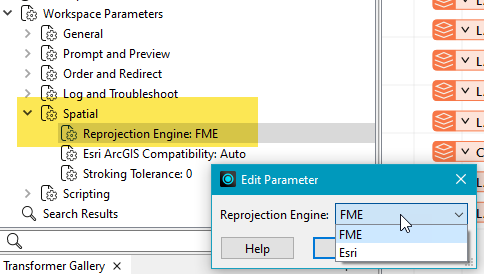
To perform a reprojection, FME typically uses the CS-MAP reprojection engine, which includes definitions for thousands of coordinate systems, with a large variety of projections, datums, ellipsoids, and units. However, GIS applications have slightly different algorithms for reprojecting data between different coordinate systems. To ensure that the data FME writes matches exactly to your existing data, you can use the reprojection engine from a different application.
To change the reprojection engine, Select Workspace Parameters > Spatial > Reprojection Engine. In the example shown, you can select Esri (but the selection here depends on your installed applications):
- The coordinate systems file coordsys.db in the FME installation folder contains the names and descriptions of all predefined coordinate systems.
- Some users may wish to use coordinate systems that do not ship with FME, and in those cases, FME also supports custom coordinate systems.
- Learn more about Working with Coordinate Systems in FME.
Use Search Envelope
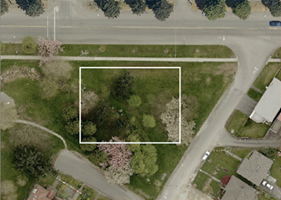
A search envelope (also known as a bounding box) is a rectangular area that defines a geographic area. In FME, the easiest way to define a search envelope is to use search envelope parameters.
Defining a search envelope is the most efficient method of selecting an area of interest because FME will read only the data that is necessary – it does not have to read an entire dataset. Search Envelope parameters apply to both vector and raster datasets and can be particularly efficient if the source format has a spatial index.
Most FME readers have parameters to define the search envelope of data that is being read:
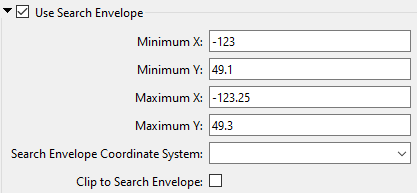
The parameters include the x and y coordinates of the bounding box as well as a parameter that defines the coordinate system.
How to Define the Bounding Box
Using the minimum and maximum x and y parameters, define a bounding box that will be used to filter the input features. Only features that intersect with the bounding box are returned. Note that the bounding box intersection is not a full geometry intersection (based on spatial relationships) that would be returned by a transformer like the SpatialFilter.
|
Search Envelope Coordinate System |
Specifies the coordinate system of the search envelope if it is different than the coordinate system of the data. The coordinate system associated with the data to be read must always be set if this parameter is set. If this parameter is set, the minimum and maximum points of the search envelope are reprojected from the Search Envelope Coordinate System to the reader’s coordinate system prior to applying the envelope. |
||||||
|
Clip to Search Envelope |
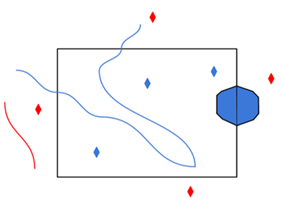
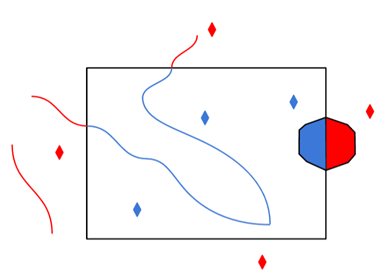
The underlying function for Use Search Envelope is an intersection; however, when Clip to Search Envelope is checked, a clipping operation is also performed.
|
 Search Method
This parameter specifies the type of spatial relationship the query features must have with the Search Feature parameter or Use Search Envelope parameter, whichever is used, in order to be returned.
- When Search Features is selected, there is no default value, so this parameter must be specified.
- When Use Search Envelope is selected, the default value is Geodb Intersects.
Value
The value of Search Method can be one of the following:
|
Parameter |
Contents |
|---|---|
|
Geodb Intersects |
Query Geometry Intersects Target Geometry. |
|
Geodb Envelope Intersects |
Envelope of Query Geometry Intersects Envelope of Target Geometry. |
|
Geodb Touches |
Query Geometry Touches Target Geometry. |
|
Geodb Overlaps |
Query Geometry Overlaps Target Geometry. |
|
Geodb Crosses |
Query Geometry Crosses Target Geometry. |
|
Geodb Within |
Query Geometry is Within Target Geometry. |
|
Geodb Contains |
Query Geometry Contains Target Geometry. |
Search Order
Specifies the order that the underlying search is performed:
- Spatial First – Perform spatial query first
- Attribute First – Perform tabular query first (when performing a WHERE clause search)
Search Feature
This parameter provides a mechanism for specifying an arbitrarily complex search feature. It works with the Search Method parameter to define the spatial constraint.
|
Parameter |
Contents |
|---|---|
|
[<xCoord> <yCoord>]+ |
A list of the coordinates defining the geometry of the query feature. Note Values must be space-delimited. For example, the following coordinate pairs will fail unless you replace commas with spaces: -97.4055,30.1331 -97.2340,30.1555 -97.2161,29.9840 -97.3995,30.0943
|
Geometry
Donut Geometry Detection
When creating donut geometries, this parameter specifies the criteria that FME will use to detect the geometric properties of the donut(s).
- Orientation Only – FME will detect donut geometry only based on orientation of the rings. Shapefile specifications state that outer boundaries of donut geometries must have clockwise orientation, and any donut holes must have counter-clockwise orientation. This option shall preserve the order of the areas.
- Orientation and Spatial Relationship – FME will detect donut geometry initially by orientation, and will perform additional geometric validation by analyzing the spatial relationships between the donut’s outer rings and holes. If any invalid donut geometries are identified, FME will attempt to correct geometric anomalies (for example, holes larger than outer ring, holes within holes, etc.). If your dataset is supposed to have holes but FME does not correctly produce them, select Orientation and Spatial Relationship.
Advanced
Split Complex Annotations
Geodatabase annotations offer a rich set of options to place text which are often not supported or do not directly translate to other formats. By enabling this option, richer text representations are broken into simpler representations that preserve text style and placement.
To maintain accurate placement, text elements are split into separate features on line breaks, format changes, irregular character spacing, and on any curves. This option also implies that multi-part annotations will be split (see the Split Multi-Part Annotations parameter above).
Each resulting feature will have a rotation angle and a point representing the bottom left corner of the text. All the text will be bottom, left-justified without an X or Y offset.
Each feature will contain all the attributes of the original text element including all the Geodatabase format attributes. The annotation related format attributes represent the current part and not the original text element. An additional geodb_text_part_count format attribute is added to indicate the part index of the original text element.
Cache Multipatch Textures
Specify the type of memory optimizations that are used when reading multipatches with textures. The default behavior to cache textures should be used in most scenarios as it will result in better performance. If, however, memory is an issue and there are many multipatch features with associated texture materials (like the buildings of a city), then consider disabling caching to improve memory usage.
- Yes – Textures will be stored in local texture caches and no effort will be made to clean them. This results in better performance but higher memory usage over time.
- No – Extra effort will be made to clear texture caches. This may result in slower performance.
Check for Simple Geometry
Specifies whether a check should be performed on features read from Geodatabase to determine if they are simple.
If this parameter is set to Yes, the format attribute geodb_feature_is_simple is set to Yes if the geometry is simple, and No if it is not.
Strip Braces off GlobalID and GUID
In some programs (for example, ArcGIS Pro), GlobalID and GUID attributes contain braces:

When set to Yes, this parameter removes the braces from the GlobalID and GUID attributes for compatibility with programs where these attributes do not contain braces.
The default is No.
Merge Feature Linked Annotations
Specifies whether feature-linked annotations should have their text, angle, and position properties merged as attributes onto the main feature to which they are linked, when reading.
- Yes – This will produce a list attribute (as detailed in Annotations), with all annotation attributes set. The annotation table(s) does not need to be explicitly read.
- No – Feature-linked annotations will be read as annotations when encountered.
Read as Three-Point Arcs
Specifies whether the reader should prefer reading arcs using the three-point representation. When selected, FME will attempt to retrieve arcs from the geodatabase in this form.
SQL to Run Before Read
This parameter allows for the execution of SQL statements before opening a table for reading. For example, it may be necessary to create a temporary view before attempting to read from it.
For detailed information about SQL functions, click the corresponding menu item in the SQL to Run editor help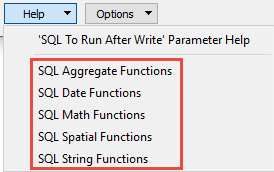 .
.
 to open the editor.
Available menu options depend on the format.
Multiple SQL commands can be delimited by a character specified using the FME_SQL_DELIMITER directive, embedded at the beginning of the SQL block. The single character following this directive will be used to split the SQL block into SQL statements, which will then be sent to the database for execution. Note: Include a space before the character.
For example:
FME_SQL_DELIMITER ;
DELETE FROM instructors ;
DELETE FROM people
WHERE LastName='Doe' AND FirstName='John'
Multiple delimiters are not allowed and the delimiter character will be stripped before being sent to the database.
Any errors occurring during the execution of these SQL statements will normally terminate the reader or writer (depending on where the SQL statement is executed) with an error. If the specified statement is preceded by a hyphen (“-”), such errors are ignored.
SQL To Run After Read
This parameter allows for the execution of SQL statements after a set of tables has been read. For example, it may be necessary to clean up a temporary view after creating it.
For detailed information about SQL functions, click the corresponding menu item in the SQL to Run editor help.
to open the editor.Available menu options depend on the format.
Multiple SQL commands can be delimited by a character specified using the FME_SQL_DELIMITER directive, embedded at the beginning of the SQL block. The single character following this directive will be used to split the SQL block into SQL statements, which will then be sent to the database for execution. Note: Include a space before the character.
For example:
FME_SQL_DELIMITER ;
DELETE FROM instructors ;
DELETE FROM people
WHERE LastName='Doe' AND FirstName='John'
Multiple delimiters are not allowed and the delimiter character will be stripped before being sent to the database.
Any errors occurring during the execution of these SQL statements will normally terminate the reader or writer (depending on where the SQL statement is executed) with an error. If the specified statement is preceded by a hyphen (“-”), such errors are ignored.