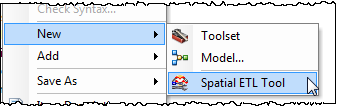
The
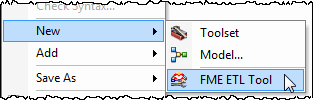
From the wizard:
Select the format of your source data. You can also click the Browse button to choose from the Reader and Writer Gallery.
Tip:If you have data in multiple formats that you want to merge during import, choose one format here and you can add others from within Workbench. Search Adding Source Datasets in Workbench Help.
The source datasets specified will be used to supply the source schema for the resulting tool. The resulting tool can be run on any input source datasets of the correct format.
Type the location of your input data. You can also use the buttons to browse for files or add multiple datasets. If the source format has specific default settings that you want to change, you can edit them here by clicking the Settings button. In most cases, however, the default settings will be all you need.
Choose a destination format.
Tip: If you would like to export to multiple formats, choose one format here, and then you can add other export formats from within Workbench.
This destination format has specific settings that you can adjust. In most cases, the default settings are all you will need to create the custom data export tool. However, if you want to change them, click the Parameters button.
Choose whether to create your workspace using a Static Schema or a Dynamic Schema.
Static Schema is the default workflow and is suitable for most workspaces. The schema is read from the source dataset and is replicated on the workspace. Each reader feature type will be connected to its corresponding writer feature type.
Dynamic Schema breaks the dependence on the source and destination schema. One merged feature type will be connected to one writer feature type that is configured for dynamic operation. The schema is not replicated on the workspace; therefore, if the source data changes, you will not have to update the workspace - it will be done automatically.
Use Workbench to specify the transformation of the input feature classes into output feature classes.
Using Workbench: More detailed help is available under the Workbench Help topic. For example, you might want to:
- Add source formats.
- Merge datasets.
- Add transformers.
- Work with feature types and attributes.
- Use the Inspector to view data.