WFS Connection
 URL
URL
Enter a proxy server that the reader will use when accessing a URL dataset (for example, http://www.mywfs.com/wfs_service_path/).
Prefer Dataset URL
This option uses the WFS source URL to build the DescribeFeatureType and GetFeature requests. It will not use the defaults from the GetCapabilities result returned by the WFS server.
WFS Version
- 1.0.0
- 1.1.0 (default)
- 2.0.0 (see also Start Index)
Ignore GetFeature Error
If checked, this option directs the reader to stop reading, rather than stopping the translation, when encountering a WFS GetFeature error.
When paging, this setting is helpful because features that are already fetched are not lost in a failed translation.
GetFeature Processing Mode
Specifies how the GetFeature document should be processed:
- Stream Mode (default) – Process the file in a streaming manner.
- Download Mode – Download the file before processing. Downloading the entire file first may eliminate inconsistencies and/or interruptions due to buffering and/or network issues.
Use Network Authentication
Use Network Authentication
Authentication Method
Specify the authentication method to use when accessing a password-protected server.
- Basic (default) – Basic access authentication is designed to allow a client to provide credentials to a server on the assumption that the connection between them is trusted and secure. Note that any credentials passed from client to server can be easily intercepted through an insecure connection.
- Digest – Digest authentication is one of the agreed-upon methods a web server can use to negotiate credentials, such as username or password, with a user's web browser.
- NTLM – A challenge-response protocol that is used to provide compatibility with versions of Windows earlier than the Windows 2000 operating systems.
- Web Connection – Web connections provide a convenient and secure way to store and reuse previously established connection parameters. See Web Connection below.
- Single Sign-on – FME will use the credentials of the current user to authenticate the HTTP request. This authentication method currently works only on the Windows operating system.
Web Connection
Connection Properties
Prefer HTTP Post, if Available
Select this option to use the HTTP Post method to update the databases.
HTTP User-Agent
If your WFS service requires you to identify yourself via user-agent, you can select this option to override the default FME HTTP User-Agent.
Connection Timeout Length (seconds)
This parameter can be used to set a timeout on HTTP connection requests. If a connection to the server cannot be created within the given number of seconds, the request fails, and the reader is not added.
The default connection timeout is 90 seconds. If 0 is entered, there is no timeout, and the reader waits indefinitely for a successful connection.
Transfer Timeout Length (seconds)
This parameter can be used to set a timeout on HTTP transfers. If data stops being transferred for more than the given number of seconds, the request fails and the reader is not be added.
The default transfer timeout is 90 seconds. If 0 is entered, there is no timeout, and the reader waits indefinitely for data to resume being transferred.
Constraints
Feature Types
Click the browse button to retrieve and list the available feature types. The feature types are gathered from the WFS Capabilities document that is retrieved from the WFS server.
Prefix Feature Types On Name Clash
Instructs the WFS reader to automatically prefix the feature types with the namespace prefix if it detects a clash with the feature type local names in the capabilities document.
Max Features
Enter the maximum number of features that a WFS GetFeature request retrieves.
Start Index
This parameter is only applicable when the WFS Version is set to 2.0.0. Some WFS servers require the Start Index parameter to be set in the request in order to enable response paging.
The index starts at 0. The reader automatically fetches the subsequent set of response features as long as its current WFS feature collection has a next url parameter.
| Example |
|---|
|
Using the following parameter settings will fetch 5 result documents of 100 features each:
The last feature collection from the server will still have a next url to fetch the next document, but since the reader has reached 500, it will ignore the next url and reading will stop. |
Count
This optional parameter is sent to the WFS server to limit the number of features that are presented in the response document. If this parameter is not set, then the value of the Max Features parameter will be sent as the value of the WFS 2.0 count.
This parameter may be used in conjunction with the Max Features parameter. Max Features will limit the total number of features retrieved from the server. This is useful if the WFS server supports paging. The FME WFS client will keep fetching subsequent result documents as long as the current result document has a next url and the Max Features limit has not been reached.
WFS Output Format
Lists the output formats for the GetFeature operation in the Capabilities document.
If a non-GML format is selected, then an additional Non_GML_GetFeature will be returned by the WFS reader. The Non_GML_GetFeature will carry these attributes:
- wfs_http_method: GET or POST
- wfs_http_url: GetFeature URL
- wfs_http_body: http body when using HTTP POST method
- wfs_output_format: User-selected output format
- wfs_temp_datafile: Temporary full file path to the downloaded GetFeature payload, the file will be deleted at the end of the translation.
XML Filter Expression
Select an expression if you want the reader to send a custom OGC XML fragment filter for the GetFeature operation.
Application Schema
Ignore Application Schema
When set to Yes, the GML reader attempts to read the GML dataset without an application schema.
Default: No
Application Schema
A GML instance document specifies the namespace and the location of its application schema through its root element xsi:schemaLocation attribute. This field allows the GML (or GML-based) reader to use a different GML schema document from the one specified in the xsi:schemaLocation attribute.
The XML Schema specification states that the xsi:schemaLocation attribute value consists of a set of pairs: The first member of each pair is the namespace for which the second member is the hint describing where to find an appropriate schema document. The presence of this hint does not require the processor to obtain or use the cited schema document, however, the processor is free to use other schemas obtained by other suitable means.
Numeric Identifier Attribute
This parameter may be required when the WFS reader is used in a third-party application that requires each feature in a layer be identified by a numeric identifier.
Use this parameter to specify the attribute name for this numeric identifier.
Map FeatureCollection
This parameter instructs the reader to map FeatureCollection as an FME feature.
Values
- gml:FeatureCollection
- wfs:FeatureCollection
Usually, only one value is used within a dataset. Selecting both gml:FeatureCollection and wfs:FeatureCollection may cause a clash in feature type names when both GML and WFS schemas are loaded, since FME needs the feature type to be unique in a reader or writer.
If both values are required, you may need to set the Add XML Namespace Prefix to parameter to a value of Feature Types – this parameter adds the namespace prefix to the feature types to make them unique.
GML Feature Elements
This parameter is optional and valid only if Ignore Application Schema is set to Yes.
Valid values are whitespace-separated XML element names.
The parameter is useful in Ignore Application Schema mode if the GML reader fails to read GML features. You can then explicitly list the XML elements that are supposed to be interpreted as GML features.
Workarounds
Separate WFS v2.0 TYPENAMES with commas
By default, the reader encloses the selected layers (that is, the value for the TYPENAMES KVP) within parentheses in the WFS v2.0 GetFeature URL.
If this parameter is checked, then the reader will separate the WFS v2.0 TYPENAMES for the GetFeature URL with commas.
Omit NAMESPACE(S) Keyword in URLs
The NAMESPACE (in WFS v1.0 and v1.1) or NAMESPACES (in WFS v2.0) keywords are used to specify the XML namespace for the feature types in the DescribeFeatureType and GetFeature URL requests.
If this parameter is checked, then the reader will omit this parameter from the URL requests.
Omit BBOX crsuri in URL
Omits the fifth component (which is the crs uri) in the BBOX KVP for the GetFeature URL request in WFS v.1.1 and WFS v2.0.
(Version and) XML Namespace Processing
Use Old Reader for GML v3.1.1 and v2.1.2 Documents (applicable only to some GML formats)
When checked, this parameter instructs the GML reader to use the older GML v3.1.1 code base to read GML v3.1.1 and v2.1.2 documents.
Disable Automatic Reader Type Selection (applicable only to some GML formats)
When checked, this parameter disables automatic reader selection/switching.
Disable XML Namespace Processing
When checked, this parameter disables XML Namespace processing for the underlying XML parser.
GML Feature Properties
Map Embedded Objects as
This parameter specifies how embedded GML objects (those containing a gml:id), that are not geometries should be mapped.
By default, these embedded objects are mapped into FME Attributes.
If the parameter is set to Geometries, the embedded objects are mapped into FME Geometries, and the embedded object properties are loaded into geometric traits. In turn, nested embedded objects are mapped into nested aggregate geometries.
If the parameter is set to Feature Types, the embedded objects will be mapped into separate FME feature types, and these feature types will have an additional gml_parent_id attribute whose value refers back to its parent feature.
Map
Predefined Properties
Specifies whether the default and optional GML feature properties, name and description, should be read.
Add XML Namespace Prefix to
This parameter controls whether XML Namespace prefixes are applied to feature types, attributes, or both. The prefix will be separated from the names by an underscore.
- Feature Types – Includes the prefixes in the feature types. Setting this parameter to Feature Types is necessary if the XSD Schemas contains feature types with the same name in different namespaces.
- Feature Types (On Conflict) – Includes the prefixes in feature types only when the XSD Schemas contain feature types with the same name in different namespaces.
- Feature Types and Attributes – Includes the prefixes in both the feature types and attributes.
Properties to Ignore
The list of whitespace-separated QNames specified in this parameter defines properties that the reader should ignore while processing the GML application schemas.
To ignore property regardless of namespace, simply specify the local-part of the name. For example:
boundedBy name
will ignore all properties whose local name are boundedBy or name, regardless of their namespace.
A prefix in a QName should be present in the parsed XML schemas. If no corresponding URI namespace can be found for a prefix, then the prefix will be discarded. The QName will (as in the unprefixed case) apply to all properties with the same local-part, regardless of namespace.
For example:
gml:boundedBy identifier wrong-prefix:description
If a binding for the gml prefix can be found in the parsed schema, then only boundedBy properties with the same namespace URI as gml will be ignored; otherwise, every boundedBy property regardless of namespace will be ignored.
Every identifier property, regardless of namespace, will be ignored. Every description property regardless of namespace will also be ignored, since the parsed schema will not have a binding for the "wrong-prefix" prefix.
Map Coverages as Feature Types
This parameter specifies whether GML Coverages should be mapped into FME features.
GML Feature Properties – Attribute Handling
Map Complex Properties as
Specifies whether GML properties that are defined as a complex type with complex content (that is, those that have embedded child elements) should be expanded into Nested Attributes within FME features, or stored as XML Fragments.
- If set to XML Fragments, complex properties are not expanded. Instead, their entire content is stored as XML text within a single attribute. This produces smaller, simpler feature structures and is suitable when detailed access to individual child elements is not needed.
- If set to Nested Attributes, complex properties are expanded into nested list attributes wherever possible, exposing their child elements directly as FME attributes. This option is useful when detailed access to individual elements or values is required for mapping or transformation, although it can produce large or deeply nested attribute structures.
When using Nested Attributes, some complex properties that contain embedded objects or geometry elements may still be stored as XML fragments, depending on schema structure or other mapping limits.
Certain complex properties, such as those that are recursively defined or that would otherwise cause circular references, are always mapped as XML fragments regardless of this setting.
Limit Number of Lists in Nested Attributes
This optional parameter applies only when Map Complex Properties As is set to Nested Attributes. It limits how many consecutive levels of multivalued nested list attributes (for example, lists within lists) are preserved before deeper levels are converted into XML fragments.
When the nesting of list elements exceeds this number, expansion automatically stops at that level and deeper content is stored as XML fragments. This helps prevent extremely deep or repetitive data hierarchies from consuming excessive memory or producing unwieldy nested attribute structures.
If this parameter is not specified, all levels of nested lists are expanded up to the general safety limits. Setting a lower value restricts expansion to shallower lists, while a higher value allows deeper nesting at the cost of larger, more complex features.
Include XML Declaration in XML Fragments
Specifies whether GML properties that are mapped as XML fragments should be converted into XML documents.
The conversion will add missing namespace declarations to the fragments, it will maintain CDATA sections, and it will also prefix an XML header declaration to the fragment. Converting the XML fragments into XML documents allows XML-based parsers (for example, XSLT and XQuery-based processors) to further process the fragments.
Flatten XML Fragments
This parameter specifies whether GML properties that are mapped as XML fragments should be flattened into nested attributes.
The flattening will only be applied to the data features carrying the XML fragments, hence the new flattened nested attributes will not be reflected in the FME feature type schema definitions.
These options are available for the flattened list attributes:
- Substitute Open List Brace – This option specifies the character to use as the open brace for the flattened list attributes. The open brace defaults to a curly brace
{but any single character is accepted. - Substitute Close List Brace – This option specifies the character to use as the close brace for the flattened list attributes. The close brace defaults to a curly brace
}but any single character is accepted. - Substitute Element List Separator – This option specifies the string to use as the separator for components within the nested attributes. The nested attribute component separator defaults to a period (.) but any single character is accepted.
ArcGIS Cache Expiry
Local Cache Expiry (minutes)
The duration that the local feature cache remains valid. The default is 60.
When this time expires, features are read from the live WFS URL to establish a fresh local cache.
Schema Attributes
Additional Attributes to Expose
Use this parameter to expose Format Attributes in FME Workbench when you create a workspace:
- In a dynamic scenario, it means these attributes can be passed to the output dataset at runtime.
- In a non-dynamic scenario, this parameter allows you to expose additional attributes on multiple feature types. Click the browse button to view the available format attributes (which are different for each format) for the reader.
Spatial
Coordinate System
Coordinate systems may be extracted from input feature data sources, may come predefined with FME, or may be user-defined. FME allows different output and input coordinate systems, and performs the required coordinate conversions when necessary.
If a coordinate system is specified in both the source format and the workspace, the coordinate system in the workspace is used. The coordinate system specified in the source format is not used, and a warning is logged. If a source coordinate system is not specified in the workspace and the format or system does not store coordinate system information, then the coordinate system is not set for the features that are read.
If a destination coordinate system is set and the feature has been tagged with a coordinate system, then a coordinate system conversion is performed to put the feature into the destination system. This happens right before the feature enters into the writer.
If the destination coordinate system was not set, then the features are written out in their original coordinate system.
If a destination coordinate system is set, but the source coordinate system was not specified in the workspace or stored in the source format, then no conversion is performed. The features are simply tagged with the output system name before being written to the output dataset.
For systems that know their coordinate system, the Coordinate System field will display Read from Source and FME will read the coordinate system from the source dataset. For most other input sources, the field will display Unknown (which simply means that FME will use default values). In most cases, the default value is all you'll need to perform the translation.
You can always choose to override the defaults and choose a new coordinate system. Select More Coordinate Systems from the drop-down menu to open the Coordinate System Gallery.
Changing a Reprojection
To perform a reprojection, FME typically uses the CS-MAP reprojection engine, which includes definitions for thousands of coordinate systems, with a large variety of projections, datums, ellipsoids, and units. However, GIS applications have slightly different algorithms for reprojecting data between different coordinate systems. To ensure that the data FME writes matches exactly to your existing data, you can use the reprojection engine from a different application.
To change the reprojection engine, Select Workspace Parameters > Spatial > Reprojection Engine. In the example shown, you can select Esri (but the selection here depends on your installed applications):

- The coordinate systems file coordsys.db in the FME installation folder contains the names and descriptions of all predefined coordinate systems.
- Some users may wish to use coordinate systems that do not ship with FME, and in those cases, FME also supports custom coordinate systems.
- Learn more about Working with Coordinate Systems in FME.
Map Geometry Columns
Specifies whether the GML geometric properties should be represented as attributes in the FME feature type definitions.
In FME data features, the GML geometric properties are represented as a single named geometry – or, if multiple geometries are present, as an aggregate geometry with multiple named geometry components. The name and the position for these geometric elements can also be controlled through the OGC GML User Attributes
- If this parameter is checked (which is the default), then the feature type definitions will contain the geometry names as attributes, and their type is set to xml_geometry. If an attribute X has its type set to xml_geometry, this attribute X becomes a placeholder in the feature type definition. It is a placeholder because actual data features for the feature type definitions will not have this attribute; instead, the data features will have a geometry named “X”.
- If this parameter is unchecked, then the feature type definition will not contain geometry names.
Use Search Envelope
|
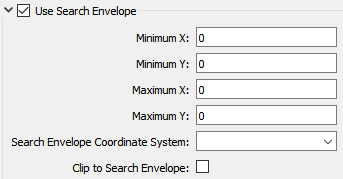
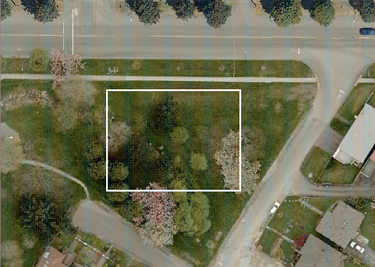
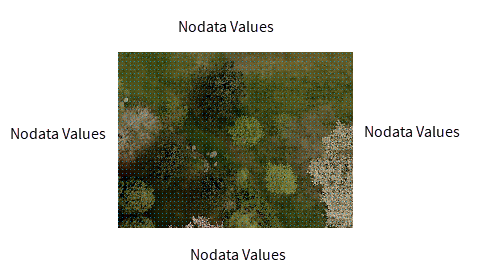
A search envelope (also known as a bounding box) is a rectangular area that defines a geographic area. In FME, the easiest way to define a search envelope is to use search envelope parameters. Defining a search envelope is the most efficient method of selecting an area of interest because FME will read only the data that is necessary – it does not have to read an entire dataset. Search Envelope parameters apply to both vector and raster datasets and can be particularly efficient if the source format has a spatial index. Most FME readers have parameters to define the search envelope of data that is being read:
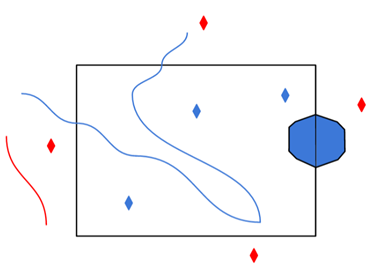
The parameters include the x and y coordinates of the bounding box as well as a parameter that defines the coordinate system. How to Define the Bounding Box Using the minimum and maximum x and y parameters, define a bounding box that will be used to filter the input features. Only features that intersect with the bounding box are returned. Note that the bounding box intersection is not a full geometry intersection (based on spatial relationships) that would be returned by a transformer like the SpatialFilter. Note If all four coordinates of the search envelope are left at 0, the search envelope will be disabled even if this option is checked.
|
|||||||
|
Search Envelope Coordinate System |
Specifies the coordinate system for the search envelope. If not specified, LL84 is assumed. This option is not included in the GetFeature request for WFS 1.0. For WFS 1.1.0 and 2.0.0, the search coordinate system is formatted according to the syntax published on the GetCapabilities response. For example, EPSG:4326 may be expressed as urn:ogc:def:crs:EPSG::4326 in the GetFeature request. The default coordinate reference system (CRS) in this case is not necessarily LL84 – it is the CRS specified by GetCapabilities. |
||||||
|
Clip to Search Envelope |
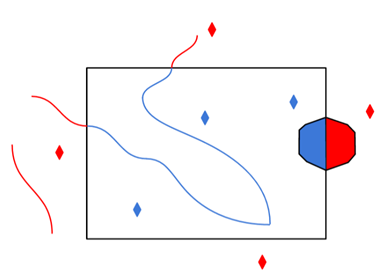
The underlying function for Use Search Envelope is an intersection; however, when Clip to Search Envelope is checked, a clipping operation is also performed.
|
||||||
GML SRS/Geometry Parameters
GML SRS Axis Order
Overrides the axis order when reading a coordinate tuple in a GML element.
Valid values for this parameter:
- 1,2
- 2,1
- 1,2,3
- 2,1,3
There is no default value for most GML formats; however, for IndoorGML, there is a default blank value (which is the same as 1,2,3).
For WFS 1.0, the value is assumed to be 1,2. For WFS 1.1.0 and 2.0.0, the SRS order is determined by the SRS specified. For example, the default axis order for EPSG:4326 is 2,1.
If the srsName in the GML document is set to urn:ogc:def:crs:EPSG:6.6.4326, and you know that the coordinate order in the GML document is lon-lat and not lat-lon order, set this parameter to 1,2 so that the reader reads the data in lon-lat order.
GML SRS Dimension
Controls how coordinate dimensionality is determined when a GML SRS Axis Order is set.
When an axis order is set, its axis count (2 for 1,2 / 2,1; 3 for 1,2,3 / 2,1,3) may differ from the dimensionality declared in the data (for example, via srsDimension). This parameter controls which takes precedence when the two conflict.
Valid values:
-
Preserve Input — The dimensionality from the data is used regardless of the axis order. A dataset with srsDimension="3" retains its Z coordinate even when a 2D axis order is set; a dataset with srsDimension="2" remains 2D even when a 3D axis order is set.
-
Follow Axis Order — The dimensionality is derived from the axis order count. A 2D axis order (1,2, 2,1) forces 2D output; a 3D axis order (1,2,3, 2,1,3) forces 3D output, regardless of what the data declares.
Default: Preserve Input (when this parameter is not set)
GML SRS Angle Direction (visible only in some GML formats)
This parameter affects the interpretation of the start and end angles for gml:ArcByCenterPoint.
The parameter overrides the default interpretation for the 0 axis location and angle direction regardless of the dataset SRS.
By default, if the SRS axis order is 1,2 or 1,2,3, then the angle direction is assumed to run counterclockwise starting from the horizontal axis. Otherwise, when the x and y axes are flipped, the angles run clockwise starting from the vertical axis.
Enforce Path Continuity By (visible only in some GML formats)
This parameter controls how segments in a path are joined together when the segments' end points are not connected:
- Inserting New Line connects the path by inserting a new connecting line between the original segments.
- Snapping End Points forces the first point of each segment to equal the last point of the previous segment.