Database Connection
 Connection File
This parameter identifies the pathname of a connection file to be used to connect to an Enterprise Geodatabase.
A connection file provides the necessary information to connect to the SDE server, such as the server name or the username.
The connection file must have an .sde extension and be properly formatted (as defined by Esri). Connection files can be created in ArcGIS Pro.
Override Credentials
Check this option to override the User and Password from the connection file. Overriding credentials is required for Connection Files that do not have saved credentials.
Username and Password
Enter the username and password to access the service.
Constraints
Tables
After specifying the database connection, click the Browse button (...) to select tables for import. A connection window appears while the system retrieves the tables from the database.
Once the Select Tables dialog appears, you can select one or more tables. Click OK to dismiss the window and add the selected table name(s) to the Tables parameter.
WHERE Clause
The WHERE clause parameter is used to constrain the row selection in tables chosen in the Tables parameter. FME will select only the rows (records) that match this condition.
The easiest method to construct a WHERE clause is by using the editor. Click the browse button (...) to open the editor, and use the SQL functions to construct the clause.
You can also type a WHERE clause directly in the parameter field:
|
Examples |
|---|
|
When querying integer and number data types: NUMLANES = 2 LENGTH > 2000 |
If the WHERE clause SQL is invalid, the translation will fail.
 in the WHERE Clause editor.Alias Mode
This parameter controls how Geodatabase aliases are used.
- None – Aliases are ignored.
- Replace Attribute Names with Aliases – (only applicable when adding a reader) Attributes on feature types will be named for their aliases rather than their official names. A geodb_feature_class_alias attribute will be included on each feature. Use this mode when the target format should create feature types using the aliases as attribute names.
- Expose Aliases as Metadata Attributes – For each attribute read, a second <name>_alias attribute will be added that stores the alias for the attribute in question. A geodb_feature_class_alias attribute will also be included on each feature. Use this mode when the target format is Geodatabase and the aliases should be preserved during feature class and table creation.
Schema Attributes
Additional Attributes to Expose
Use this parameter to expose Format Attributes in FME Workbench when you create a workspace:
- In a dynamic scenario, it means these attributes can be passed to the output dataset at runtime.
- In a non-dynamic scenario, this parameter allows you to expose additional attributes on multiple feature types. Click the browse button to view the available format attributes (which are different for each format) for the reader.
Spatial
Coordinate System
Coordinate systems may be extracted from input feature data sources, may come predefined with FME, or may be user-defined. FME allows different output and input coordinate systems, and performs the required coordinate conversions when necessary.
If a coordinate system is specified in both the source format and the workspace, the coordinate system in the workspace is used. The coordinate system specified in the source format is not used, and a warning is logged. If a source coordinate system is not specified in the workspace and the format or system does not store coordinate system information, then the coordinate system is not set for the features that are read.
If a destination coordinate system is set and the feature has been tagged with a coordinate system, then a coordinate system conversion is performed to put the feature into the destination system. This happens right before the feature enters into the writer.
If the destination coordinate system was not set, then the features are written out in their original coordinate system.
If a destination coordinate system is set, but the source coordinate system was not specified in the workspace or stored in the source format, then no conversion is performed. The features are simply tagged with the output system name before being written to the output dataset.
For systems that know their coordinate system, the Coordinate System field will display Read from Source and FME will read the coordinate system from the source dataset. For most other input sources, the field will display Unknown (which simply means that FME will use default values). In most cases, the default value is all you'll need to perform the translation.
You can always choose to override the defaults and choose a new coordinate system. Select More Coordinate Systems from the drop-down menu to open the Coordinate System Gallery.
Changing a Reprojection
To perform a reprojection, FME typically uses the CS-MAP reprojection engine, which includes definitions for thousands of coordinate systems, with a large variety of projections, datums, ellipsoids, and units. However, GIS applications have slightly different algorithms for reprojecting data between different coordinate systems. To ensure that the data FME writes matches exactly to your existing data, you can use the reprojection engine from a different application.
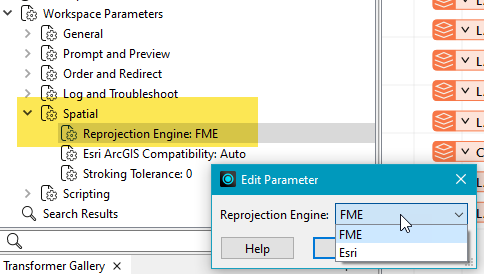
To change the reprojection engine, Select Workspace Parameters > Spatial > Reprojection Engine. In the example shown, you can select Esri (but the selection here depends on your installed applications):
- The coordinate systems file coordsys.db in the FME installation folder contains the names and descriptions of all predefined coordinate systems.
- Some users may wish to use coordinate systems that do not ship with FME, and in those cases, FME also supports custom coordinate systems.
- Learn more about Working with Coordinate Systems in FME.
Use Search Envelope
A search envelope (also known as a bounding box) is a rectangular area that defines a geographic area. In FME, the easiest way to define a search envelope is to use search envelope parameters.
Defining a search envelope is the most efficient method of selecting an area of interest because FME will read only the data that is necessary – it does not have to read an entire dataset. Search Envelope parameters apply to both vector and raster datasets and can be particularly efficient if the source format has a spatial index.
Most FME readers have parameters to define the search envelope of data that is being read:
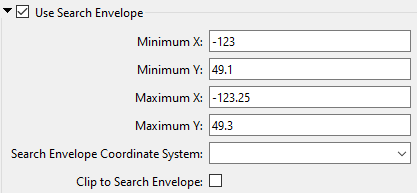
The parameters include the x and y coordinates of the bounding box as well as a parameter that defines the coordinate system.
How to Define the Bounding Box
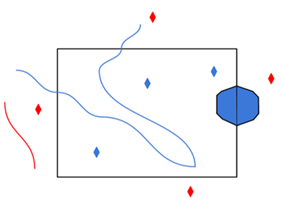
Using the minimum and maximum x and y parameters, define a bounding box that will be used to filter the input features. Only features that intersect with the bounding box are returned. Note that the bounding box intersection is not a full geometry intersection (based on spatial relationships) that would be returned by a transformer like the SpatialFilter.
|
Search Envelope Coordinate System |
Specifies the coordinate system of the search envelope if it is different than the coordinate system of the data. The coordinate system associated with the data to be read must always be set if this parameter is set. If this parameter is set, the minimum and maximum points of the search envelope are reprojected from the Search Envelope Coordinate System to the reader’s coordinate system prior to applying the envelope. |
||||||
|
Clip to Search Envelope |
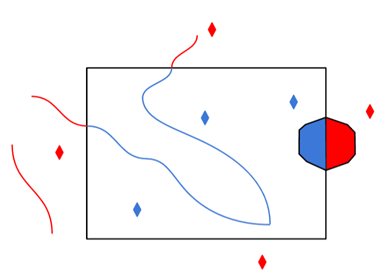
The underlying function for Use Search Envelope is an intersection; however, when Clip to Search Envelope is checked, a clipping operation is also performed.
|

Advanced
Persistent Connection
When enabled, the database connection persists for the duration of an FME session.
For example, it may be desirable to maintain a connection when running a batch of 100 workspaces on the same database connection, which saves the processing time required to make and break a database connection.
FME considers the database connection to be the same when the database name, the username, and password are the same.
Nodata Handling for Managed Rasters
Managed rasters, rasters stored within the Geodatabase, represent Nodata as a bit mask on each band. This parameter specifies how to handle these Nodata bit masks.
- None – Nodata bit masks will be ignored
- Single Alpha Band (default) – Nodata bit masks for each band are merged into a single additional alpha band named geodb_nodata.
If merged into a single alpha band, then the alpha band will contain a value of 0 (Nodata) at a given cell if and only if the corresponding cell of all the other bands is Nodata.
This parameter only affects managed rasters. Unmanaged rasters, rasters stored in files outside the Geodatabase, have Nodata represented as a Nodata value per band and do not have Nodata bitmasks.