CityGML Schema Options
 Reader Driven by CityGML Schema
If set to Yes (the recommended setting), this parameter reads the core CityGML schema files as well as the schema files specified in either xsi:schemaLocation attribute in the XML document or ADE_XSD_DOC directive to determine the feature types and feature attributes of the dataset.
It is recommended that this parameter be set to Yes for new workspaces reading CityGML 1.0, 1.1 and various ADE datasets.
Additional ADE Schema File(s)
This parameter can be used only if the Reader Driven by CityGML Schema parameter is set to Yes. The schema files specified here will override those specified in xsi:schemaLocation attribute in the XML document.
Validate GML Dataset File
Determines whether the reader should validate the specified dataset file.
Ignore xsi:schemaLocation in Dataset
This parameter can be used to tell the reader to ignore the schema files that are specified in the xsi:schemaLocation attribute of the root element in the dataset. This is particularly useful if the file locations specified in xsi:schemaLocation are not valid file paths.
Add XML Namespace Prefix to Feature Types
FME feature type names may include the XML Namespace prefixes used in the GML application schema. The prefix will be separated from the names by an underscore.
Setting this parameter is necessary when a GML dataset contains feature types with the same name in different namespaces.
By default, the prefixes are not added to the feature type names.
CityGML Version – For Importing Feature Types Without Dataset
This parameter is applicable only in scenarios when the reader dataset field is empty.
For example, the reader dataset might not yet exist when the CityGML reader is used to "Import Feature Types" to the CityGML writer.
Max Attributes Per Nested Attribute
Limits the number of FME nested attributes that an XML element and its children are mapped into. If the specified limit is reached, then the XML element is simply mapped into an XML fragment.
Default value: 400
FME Schema Options
Include Only Feature Types in Dataset
If selected, only the feature types found in the dataset will be created. Otherwise, all feature types that are found in CityGML core and additional schema files (as specified in Additional ADE Schema File(s) or xsi:schemaLocation) will be created.
- Include Generic Attributes as Feature Types – If checked, an extra GenericAttribute feature type will be created to hold all the features created from generic attribute elements (stringAttribute, intAttribute, doubleAttribute and so on).
- Include X3DMaterial, ParameterizedTexture and GeoreferencedTexture as Feature Types – If checked, feature types for X3DMaterial, ParameterizedTexture and GeoreferencedTexture elements will be created.
- Include Generic Attributes in FME Schema – Regardless of the value specified here, generic attributes will always be read as FME attributes. If this option is checked, those attributes will also show up in FME schema.
CityGML Options
Add xlink_href Traits from Geometry Reference
If set to Yes (the default), the reader adds xlink_href geometry Traits to the FME geometries that were instantiated from GML xlink:href reference geometries.
In addition, if the xlink:href geometry reference is from a base surface of a GML OrientableSurface that needs to be reversed, the reader also adds a gml_geometry_reversed boolean trait set to Yes to the FME geometry.
LODs to Read
CityGML supports five Levels of Detail (LODs). This parameter instructs the reader to discard geometries that are a specific level of detail. By default, all LODs are selected. The valid values are:
- LOD 0 – This is the coarsest level of detail. For example, general topology, landscapes.
- LOD 1 – Low level of detail. For example, simple prismatic buildings and general landscape features.
- LOD 2 – Mid level of detail. For example, some architectural features in building models, greater detail in transportation, vegetation, and outdoor furniture features.
- LOD 3 – High level of detail. For example, buildings and outdoor objects as they would actually appear.
- LOD 4 – Very high level of detail. For example, detailed interior structures like rooms, doors, and furniture.
Schema Attributes
Additional Attributes to Expose
Use this parameter to expose Format Attributes in FME Workbench when you create a workspace:
- In a dynamic scenario, it means these attributes can be passed to the output dataset at runtime.
- In a non-dynamic scenario, this parameter allows you to expose additional attributes on multiple feature types. Click the browse button to view the available format attributes (which are different for each format) for the reader.
Spatial
Coordinate System
Coordinate systems may be extracted from input feature data sources, may come predefined with FME, or may be user-defined. FME allows different output and input coordinate systems, and performs the required coordinate conversions when necessary.
If a coordinate system is specified in both the source format and the workspace, the coordinate system in the workspace is used. The coordinate system specified in the source format is not used, and a warning is logged. If a source coordinate system is not specified in the workspace and the format or system does not store coordinate system information, then the coordinate system is not set for the features that are read.
If a destination coordinate system is set and the feature has been tagged with a coordinate system, then a coordinate system conversion is performed to put the feature into the destination system. This happens right before the feature enters into the writer.
If the destination coordinate system was not set, then the features are written out in their original coordinate system.
If a destination coordinate system is set, but the source coordinate system was not specified in the workspace or stored in the source format, then no conversion is performed. The features are simply tagged with the output system name before being written to the output dataset.
For systems that know their coordinate system, the Coordinate System field will display Read from Source and FME will read the coordinate system from the source dataset. For most other input sources, the field will display Unknown (which simply means that FME will use default values). In most cases, the default value is all you'll need to perform the translation.
You can always choose to override the defaults and choose a new coordinate system. Select More Coordinate Systems from the drop-down menu to open the Coordinate System Gallery.
Changing a Reprojection
To perform a reprojection, FME typically uses the CS-MAP reprojection engine, which includes definitions for thousands of coordinate systems, with a large variety of projections, datums, ellipsoids, and units. However, GIS applications have slightly different algorithms for reprojecting data between different coordinate systems. To ensure that the data FME writes matches exactly to your existing data, you can use the reprojection engine from a different application.
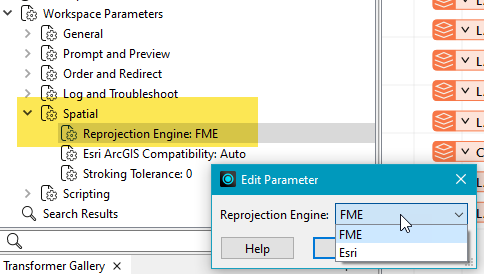
To change the reprojection engine, Select Workspace Parameters > Spatial > Reprojection Engine. In the example shown, you can select Esri (but the selection here depends on your installed applications):
- The coordinate systems file coordsys.db in the FME installation folder contains the names and descriptions of all predefined coordinate systems.
- Some users may wish to use coordinate systems that do not ship with FME, and in those cases, FME also supports custom coordinate systems.
- Learn more about Working with Coordinate Systems in FME.
Use Search Envelope
A search envelope (also known as a bounding box) is a rectangular area that defines a geographic area. In FME, the easiest way to define a search envelope is to use search envelope parameters.
Defining a search envelope is the most efficient method of selecting an area of interest because FME will read only the data that is necessary – it does not have to read an entire dataset. Search Envelope parameters apply to both vector and raster datasets and can be particularly efficient if the source format has a spatial index.
Most FME readers have parameters to define the search envelope of data that is being read:
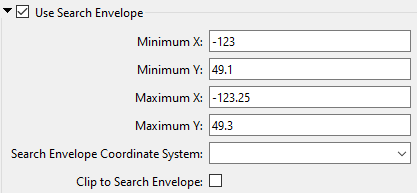
The parameters include the x and y coordinates of the bounding box as well as a parameter that defines the coordinate system.
How to Define the Bounding Box
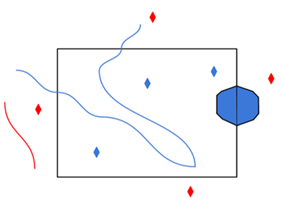
Using the minimum and maximum x and y parameters, define a bounding box that will be used to filter the input features. Only features that intersect with the bounding box are returned. Note that the bounding box intersection is not a full geometry intersection (based on spatial relationships) that would be returned by a transformer like the SpatialFilter.
|
Search Envelope Coordinate System |
Specifies the coordinate system of the search envelope if it is different than the coordinate system of the data. The coordinate system associated with the data to be read must always be set if this parameter is set. If this parameter is set, the minimum and maximum points of the search envelope are reprojected from the Search Envelope Coordinate System to the reader’s coordinate system prior to applying the envelope. |
||||||
|
Clip to Search Envelope |
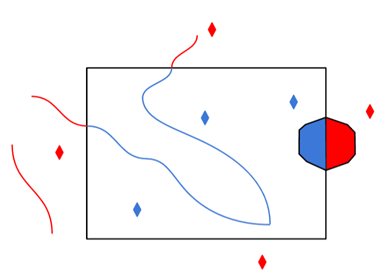
The underlying function for Use Search Envelope is an intersection; however, when Clip to Search Envelope is checked, a clipping operation is also performed.
|

SRS Parameters
GML SRS Axis Order
Overrides the axis order when reading coordinate tuples in a CityGML <pos> or <posList> element.
Valid values are 1,2, 2,1, 1,2,3, and 2,1,3.
GML SRS Dimension
Controls how coordinate dimensionality is determined when a GML SRS Axis Order is set.
When an axis order is set, its axis count (2 for 1,2 / 2,1; 3 for 1,2,3 / 2,1,3) may differ from the dimensionality declared in the data (for example, via srsDimension). This parameter controls which takes precedence when the two conflict.
Valid values:
-
Preserve Input — The dimensionality from the data is used regardless of the axis order. A dataset with srsDimension="3" retains its Z coordinate even when a 2D axis order is set; a dataset with srsDimension="2" remains 2D even when a 3D axis order is set.
-
Follow Axis Order — The dimensionality is derived from the axis order count. A 2D axis order (1,2, 2,1) forces 2D output; a 3D axis order (1,2,3, 2,1,3) forces 3D output, regardless of what the data declares.
Default: Preserve Input (when this parameter is not set)
Texture Coordinate Order to follow SRS Axis Order
This parameter defaults to the recommended setting No.
It should only be set to Yes if the source datasets have texture coordinates and were created by the CityGML writer in FME versions prior to FME 2012.
Use Network Authentication
Use Network Authentication
Authentication Method
Specify the authentication method to use when accessing a password-protected server.
- Basic (default) – Basic access authentication is designed to allow a client to provide credentials to a server on the assumption that the connection between them is trusted and secure. Note that any credentials passed from client to server can be easily intercepted through an insecure connection.
- Digest – Digest authentication is one of the agreed-upon methods a web server can use to negotiate credentials, such as username or password, with a user's web browser.
- NTLM – A challenge-response protocol that is used to provide compatibility with versions of Windows earlier than the Windows 2000 operating systems.
- Web Connection – Web connections provide a convenient and secure way to store and reuse previously established connection parameters. See Web Connection below.
- Single Sign-on – FME will use the credentials of the current user to authenticate the HTTP request. This authentication method currently works only on the Windows operating system.
Web Connection