By default, the General tab is selected. You can rename the feature type by simply clicking in the Feature Type name field and typing a new name.
You can also choose to fanout the feature according to the selected attribute name. See Fanout properties.
For some formats, such as Oracle, Workbench will display the table name in the Database Username field.
For example, if you specify a database table called CITY.ROADS, the Feature Type is ROADS and the database user is CITY. This field allows you to change the database user (for example, to VANCOUVER) on the output feature type.
Changing Geometries
When a destination feature type is automatically created by FME, the destination geometry is assumed to be the same as the source dataset. For example, a source dataset containing line features is assumed to lead to a destination dataset containing line features. However, this is not always the case. Transformers within the workspace may be used to alter feature geometry.
If feature geometry will change during the translation, and the destination format demands a strict definition of allowed geometries (Shape datasets require this), then the geometry type can be selected here from a drop-down list. This is not only a desirable quality, but vital too, since not to make such a change would lead to error messages in the subsequent translation.
For many formats, all geometries are automatically allowed – in these cases, the Allowed Geometries field is disabled.
Dynamic Parameters are used in conjunction with Adding a Reader as a Resource.
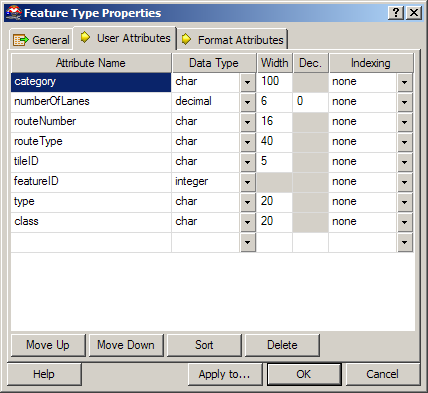
Click the User Attributes tab.
This is a convenient way to alter the schema of a feature type. If a format doesn't allow user attributes, this tab is not present.
On writer feature types, you can easily add, delete, move, rename, sort, and change attributes’ data types. For some data types, you can define a width (that is, the width of the field). For other data types, you can specify a number of decimal places. If a column is grayed out, then you can't set a width or number of decimal places.
Tip: To quickly remove several attributes at once: Ctrl + click to select them, and then press Delete.
Click the Format Attributes tab.
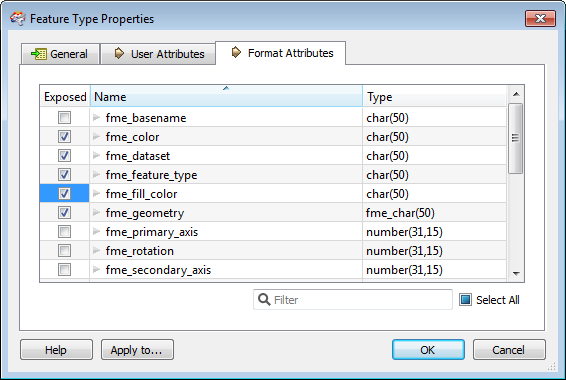
These are built-in FME attributes that you can "expose" or make visible so that you can set them to particular values and connect them to other format-specific attributes. Apply to... exposes the attributes for multiple, selected feature types.
Exposing an attribute on the writer side allows it to be set to a value (for example, you might want to set a pen_width or a line_color to appear in the destination data).
This is key to fully using FME. The special attributes' purposes are described in the Feature Representation section of each reader (input) and writer (output) in the FME Readers and Writers manual (available under the Workbench help menu). These attributes allow a wide variety of special things to be done with formats (like setting line thickness, creating special entities, setting particular bits or bytes).
Click the Parameters tab. This tab appears if a format (such as Oracle or SDE) supports table creation.
If a table already exists and you select Yes under the Parameter Value column, then the remaining fields are disabled and Workbench will retrieve the values from the existing table. Otherwise, select No and the table will be created from the parameters that you enter here.
