Many transformers, readers, and writers require you to connect and authenticate to a web service in order to use them. For example, when you use an HTTPCaller transformer, you may need to authenticate to a web service, such as Google Fusion Tables. Named connections provide a convenient and secure way to store and reuse these connection parameters. Each time you need to use the same connection in a workspace, you can use the named connection, rather than re-entering the connection parameters. If the connection parameters change, you can edit them in one place, rather than in each workspace that uses the connection.
Running workspaces that use named connections from FME Server is not supported. When uploading a workspace that uses named connections to FME Server, you must first expose any named connections.
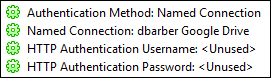
When you use a named connection in a workspace, the Navigator displays only the connection name. The service name, username, password, and other connection parameters do not display. For example, here is how connection information displays in the parameters of a transformer that uses a named connection.
FME Desktop must be registered to use the web services to which you want to connect. Fortunately, many of the most common web services are already registered in FME. Using the Web Service Connections tools (Tools > FME Options > Web Service Connections), you can specify your connection parameters to these services, as well as edit them or remove them altogether. It is usually more convenient to add a named connection at the time you are using one in a workspace. However, you can also add a named connection in Web Service Connections, and use it later in a workspace.
You can use an existing named connection, or define a new one, in a Transformer Parameters, Add Reader, or Add Writer dialog.
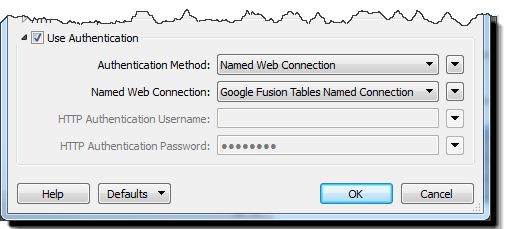
For example, in an HTTPCaller transformer parameters dialog, check Use Authentication. In the Authentication Method field, specify Named Web Connection. In the Named Web Connection field, specify the named connection.
Alternatively, to create a new named connection and use it right away, in the Named Connection field, specify Add Named Web Connection.
In the Add Web Connection dialog, specify a name for the connection, the web service, and the connection parameters. Depending on the web service type, you may need to click Authenticate and validate your connection directly with the web service.
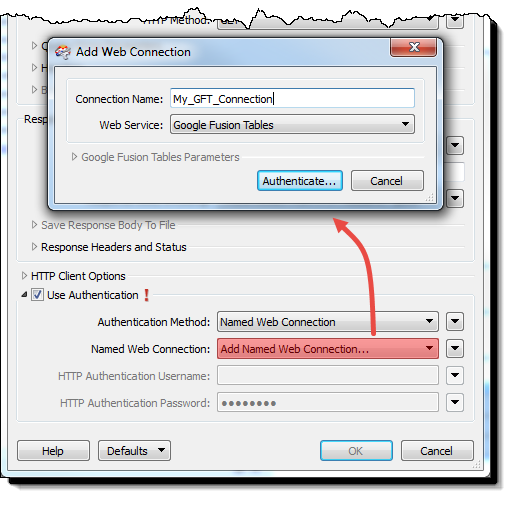
The next time you need to use the newly-created named connection in a workspace, it will be listed in the drop-down menu of the Named Web Connection field.
For more information, see the applicable topic in the FME Transformers or FME Readers and Writers Help.
You can change an existing web service connection in the following ways:
In the Navigator, right click on the Authentication Method parameter of the applicable object, such as a transformer, that is using the connection, and select a desired method for editing the authentication parameter.
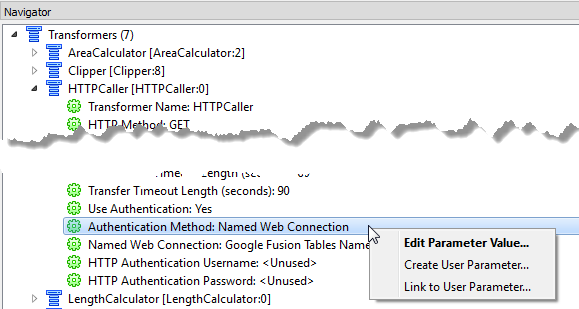
You can change the same named connection that is used in multiple places in a workspace to use a different named connection.
All places in the workspace that were using the named connection previously specified will now use the new one.