Reader Overview
Different feature types are read by default, depending on whether you change the Reader Parameters. (To open the parameters, click the Parameters button in the Add Reader dialog.)
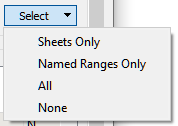
By default, all worksheets and named ranges are selected. You can use the Select button in the Sheets to Read section to filter the display:
- When you open the Reader Parameters, by default, all of the worksheets in the spreadsheet will be selected, and all named ranges will be deselected. This is so that all cell data is read into FME only once.
- If you add a reader and there is more than one feature type, you will have to select the feature types to add.
Sheets to Read
This section shows all of the worksheets and named ranges in the Excel file. A named range is of the form sheetName/NamedRangeName.
Example
In this example, the selected area is a named range: the name of the named range is Address, and it is on the sheet PublicTrees.
The column Field Names Row allows you to select which row contains the header names, the column Number of Header Rows allows combining the number of previous rows into a single header name using ‘_’, and the column Cell Range allows you to restrict the information to read. If a cell in the Field Names Row is blank (if, for example, it is a merged cell), it will automatically be given the merged cell value.

The Select menu allows you to choose which worksheets/named ranges to read. By default, FME will select All.
If the column Field Names Row value is set to zero (0), then the column names will be set to the Excel column letters A, B, C, etc. This can be useful if there are no field names, or if they are not consistent. The Excel Reader only supports a single row of field names, and merged cells in the field name row will result in the value being duplicated for all columns it covers. To resolve attribute name duplication, additional numerals will be appended.
Preview
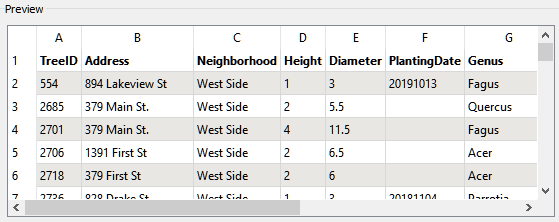
This section shows a preview of the data (up to 100 rows) of the selected feature type (either feature or named range). As shown in the example here, if you select a header row from the Sheets to Read area, that row will be shown in boldface text.
Attributes
This section displays the attributes that were created for the feature type (schema scanned).

- Exposed: Selected attributes will be added to the reader feature type. Unchecked attributes will not be added.
- Name: The attribute name that will be placed on resulting features.
- Type: The attribute type is listed in this column. You can change the attribute type by clicking on the field and selecting from the drop-down list. This only affects the resulting features if the selected attribute type is a coordinate type or a date type.
- Width: This value is ignored for attributes produced from this reader.
- Precision: This value is ignored for attributes produced from this reader.
 View the Attribute Types
|
Field Type |
Description |
|---|---|
|
boolean |
Boolean fields store True/False data. Data read or written from and to such fields must always have a value of either true or false. FME represents boolean as Yes and No for True and False, respectively, so any logging within FME will reflect this. Round-tripped values will be written as True/False as expected. |
|
char(<width>) |
Character fields store fixed-length strings. The width parameter controls the maximum number of characters that can be stored by the field. No padding is required for strings shorter than this width. Notes: Strings encountered that have length greater than width will still be returned; they will not be truncated. The width parameter is only valuable if the features will be passed to another format that requires this information. |
|
datetime |
Datetime fields convert doubles or strings in Excel to FME datetime string format and are detected using the formatting value and cell value from the source file. Note that no formatting is preserved from the original value in Excel. YYYYMMDDHHmmSS.mmm (Year, Month, Day, Hour, Minute, Second, Milliseconds) |
| date |
Date fields convert doubles or strings in Excel to FME date string format, and are detected using the formatting value and cell value from the source file. Note that no formatting is preserved from the original value in Excel. YYYYMMD (Year, Month, Day) |
| time |
Time fields convert doubles or strings in Excel to FME time string format, and are detected using the formatting value and cell value from the source file. Note that no formatting is preserved from the original value in Excel. HHmmSS.mmm (Hour, Minute, Second, Milliseconds) |
|
string |
String fields store variable length character data up to a length of 32767 characters. Values larger than 32767 are truncated. |
|
number |
Number fields store single and double precision floating point values. |
|
y_coordinate z_coordinate |
Coordinate fields store double precision floating point values. There is no ability to specify the precision and width of the field. If x and y coordinates are specified on a feature type on read, features will use them to try to create point geometries. The attributes are not consumed by the geometry, so they will still appear on the features produced. If your spreadsheet data contains X/Y values or Latitude/Longitude, FME automatically converts the rows to geometry. FME also recognizes common labels for columns, like latitude and longitude, and sets the source coordinate system to LL-WGS84. |
Search a list of attributes by typing a key sequence into this field. For more information, see Usage Notes.
If this option is checked, an attribute will be added to the workspace for columns that contain a formula. The reader reads formulas used to calculate the values of a cell and stores the formula in the attribute <attributeName>.formula.
If this option is checked, an <attributeName>.comment attribute will be added to the workspace for columns that contain a comment.
If this option is checked, an <attributeName>.hyperlink attribute will be added to the workspace for columns that contain a hyperlink.
If this option is checked, an <attributeName>.formatting attribute will be added to the workspace for columns that contain formatting.
Schema Attributes
Additional Attributes to Expose
Use this parameter to expose Format Attributes in FME Workbench when you create a workspace:
- In a dynamic scenario, it means these attributes can be passed to the output dataset at runtime.
- In a non-dynamic scenario, this parameter allows you to expose additional attributes on multiple feature types. Click the browse button to view the available format attributes (which are different for each format) for the reader.
Spatial
Coordinate System
Coordinate systems may be extracted from input feature data sources, may come predefined with FME, or may be user-defined. FME allows different output and input coordinate systems, and performs the required coordinate conversions when necessary.
If a coordinate system is specified in both the source format and the workspace, the coordinate system in the workspace is used. The coordinate system specified in the source format is not used, and a warning is logged. If a source coordinate system is not specified in the workspace and the format or system does not store coordinate system information, then the coordinate system is not set for the features that are read.
If a destination coordinate system is set and the feature has been tagged with a coordinate system, then a coordinate system conversion is performed to put the feature into the destination system. This happens right before the feature enters into the writer.
If the destination coordinate system was not set, then the features are written out in their original coordinate system.
If a destination coordinate system is set, but the source coordinate system was not specified in the workspace or stored in the source format, then no conversion is performed. The features are simply tagged with the output system name before being written to the output dataset.
For systems that know their coordinate system, the Coordinate System field will display Read from Source and FME will read the coordinate system from the source dataset. For most other input sources, the field will display Unknown (which simply means that FME will use default values). In most cases, the default value is all you'll need to perform the translation.
You can always choose to override the defaults and choose a new coordinate system. Select More Coordinate Systems from the drop-down menu to open the Coordinate System Gallery.
Changing a Reprojection
To perform a reprojection, FME typically uses the CS-MAP reprojection engine, which includes definitions for thousands of coordinate systems, with a large variety of projections, datums, ellipsoids, and units. However, GIS applications have slightly different algorithms for reprojecting data between different coordinate systems. To ensure that the data FME writes matches exactly to your existing data, you can use the reprojection engine from a different application.
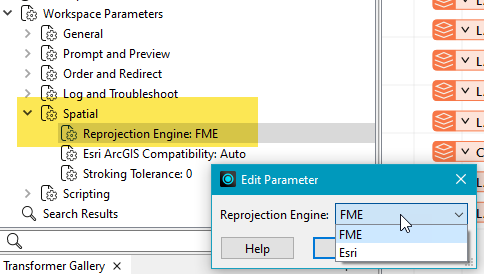
To change the reprojection engine, Select Workspace Parameters > Spatial > Reprojection Engine. In the example shown, you can select Esri (but the selection here depends on your installed applications):
- The coordinate systems file coordsys.db in the FME installation folder contains the names and descriptions of all predefined coordinate systems.
- Some users may wish to use coordinate systems that do not ship with FME, and in those cases, FME also supports custom coordinate systems.
- Learn more about Working with Coordinate Systems in FME.
Advanced
Workbook Password
Enter a password to open and read an encrypted workbook.
When a Workbook is encrypted with a password, the preview window will be empty with a Could not find sheets label. Once the password is entered, the preview window will update with the spreadsheet’s contents.
If the password does not match, a message will appear in the FME log indicating Incorrect password.
Apply Filter(s)
By default, the reader ignores all Excel filters and reads every row of data. Select this option if you only want to read in the rows that are not being filtered out. This parameter sets the feature-type level default.
Maximum Rows to Scan
If the field structure of the first several rows of a feature type is representative of the remainder of the feature type, this option can be set to prevent FME from unnecessarily reading further rows from a potentially large range when determining its schema.
If left blank, there will be no limit and all rows will be read.
Trim Whitespace from Attribute Names
If checked, the reader will trim all whitespace characters from the ends of all attribute names. For example, “ Category ” would become “Category”.
Trim Characters from Attribute Names
This parameter accepts a list of ASCII characters which it will trim from the ends of all attribute names. (This is similar to setting the AttributeTrimmer transformer Trim Type parameter to Both.)
For example, when entering "_ in the parameter field, the attribute ""___Category_"" becomes Category. It's also a useful option for removing quotation marks from column names ("region" becomes region).
Read Blank Cells As
This parameter defines how FME will read back blank cells.
- Null – Blank cells will be read back as null attributes on the output feature.
- Missing – Blank cells will be read back as missing attributes on the output feature.
Blank Attributes In Schema
Changing this parameter to Exclude will automatically remove all columns without any values or formulas from the schema. This is useful if you have a worksheet with many columns but only a few of them have any data.
- Include – Default and all columns in the specified range will be included.
- Exclude – All columns without values or formulas will be removed. This will also exclude columns with formatting that do not have any values or formulas.
Skip Empty Rows
Determines whether or not empty rows in the sheet are skipped. If skipped, empty rows will not produce any features.
- Yes (default) – Empty rows will be skipped.
- No – Empty rows will not be skipped.
Expand Merged Cells
This parameter tells the reader what to do when it encounters a merged cell range.
- If checked (the default), the value will be placed into every attribute contained within the merged cell.
- If unchecked, the value of the range will only be placed in the first attribute of the first attribute containing it.
For example, if there is a merged cell range of A1:B2 (which contains 4 cells) and it has the value testString:
- If you check Expand Merged Cells, you receive two features with attributes A=’testString’ and B=’testString’.
- If you do not check Expand Merged Cells, you receive one feature with attributes A=’testString’ and B=<missing> and one feature with A=<missing> and B=<missing>.
Read Embedded Images As
Sets how any images embedded in the worksheets will be handled. An image’s top left corner determines the cell the image is considered to be placed in. Images may be ignored on read, read as an additional value for that attribute (<attributeName>.raster_data), or as additional geometry features. If images are considered to be part of the row’s data, use the Attribute option. The Geometry option is useful if images on a worksheet are related to the dataset but not tied to any particular row.
- None – No images will be read. This is the default option.
- Attribute – If a row within the selected columns contains an image, the cell’s value will be read as normal, and additional attributes will be added that pertain to the image. Images that fall outside the Cell Range for the feature type will never be read.
- .raster_data – Blob (binary-encoded string) containing the raw image file contents. Can be converted to a raster geometry via the RasterReplacer transformer.
- .raster_format – The image format of the blob (PNG, GIF, JPEG, TIFF). Less common formats supported by Excel (WMF, EMF, DIB) may not be supported as attributes and will generate a warning.
- .raster_height – The image’s displayed height in pixels.
- .raster_width – The image’s displayed width in pixels.
- Geometry – Images in BMP, PNG, GIF, JPEG, and TIFF formats will be read as Raster features. Less common formats supported by Excel (WMF, EMF, DIB) may not be supported as geometries and will generate a warning. When reading embedded images as Geometry, all images on the sheet will be read as features, even if they fall outside the feature type read area.
It is possible to link images to an Excel worksheet without inserting the image into the workbook. These Linked Images cannot be read directly by FME and will generate a warning when one is encountered. When encountered in Attribute mode, in lieu of the attributes listed above, only .raster_location will be set to the file path where the image can be found. Note that the path is not guaranteed to be valid. In Geometry mode, the xlsx_raster_location format attribute will be set instead of a raster geometry.
Feature Types corresponding to Named Ranges will never produce features for images.
Expanded Scan for Date/Time Values
Check this option to enable the Additional Date/Time Format parameter.
Additional Date/Time Format
By default, the Excel Reader will recognize date values in ISO 8601 and FME formats. When reading Excel files with date values that do not conform to this format, users can specify additional formats to check for when scanning for attribute types.
%m/%d/%Y; %m/%d/%y9999; %m-%d-%Y; %m-%d-%y9999;
This option only affects the generated schema of the feature types. This can be useful when using automatically detected schemas. Values read are unaffected by this option.
Read Form Control as Cell Values
The Excel Reader supports reading certain form controls as cell values. When enabled, the reader will check for form controls whose top left anchor is in an attribute cell and if present, will use its value to populate the attribute, overriding any other value that may reside in the cell. Only one form control per cell will be read – this will usually be the first control that was added to the sheet. Multiple form controls per cell are not supported.
Formatting, formulas, and hyperlinks may still be read from a cell with a form control if the appropriate option is selected.
Currently, only checkbox-type controls are supported. The possible values are:
- True (boolean) when the box is checked.
- False (boolean) when the box is empty.
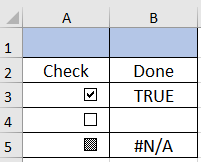
- Mixed (string) when the box is filled with a pattern. This can happen when the form control is bound to a cell with the value #N/A or the formula =NA().
Example
In the input Excel file, cell checkboxes are shown checked, unchecked, and mixed:
After the file is read, the Reader Parameters Preview area shows the cells before and after Read Form Control as Cell Values is checked:

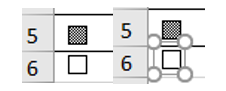
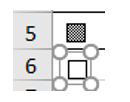
This form control is correctly positioned in row 6 and can be read as an attribute value:
 Scan For Geometric Types
This option tells the reader how fields named with a common geometric label are handled.
The default value for this option is checked.
When this option is unchecked, features with common X/Y or Latitude/Longitude labels will not be created as point geometry. This is useful when the data is incomplete or missing.