 About Database Connections
|
Database formats include a Database Connection parameter that defines and stores authentication information. For general information about sharing database connections, please see Using Database Connections. Note that Database Connection parameters differ slightly, depending on context and/or database format. |
|
Connection From the Connection parameter in a database format, you can do one of the following:
|
Connection
|
Connection Parameters (Add Database Connection dialog) |
|---|
|
Server The host name of the Microsoft SQL Server or Azure SQL Database. (It is not necessary to specify a port if a default configuration is used.) If you have configured your Microsoft SQL Server database to use a non-standard port number, you can specify this port here. The correct syntax is: <Host>[\<Instance>][:<port>] Database To initiate a database connection, enter (or browse for) the database name. Authentication
Username and Password Enter the username and password to access the service. Encrypt Connection Note This parameter is not present in the Azure SQL Database reader and writer. The Azure SQL Database reader and writer will always request Secure Sockets Layer (SSL) encrypted connections.
When selected, this parameter requests Secure Sockets Layer (SSL) encryption for the connection. If the server does not have a certificate trusted by the client machine, the connection will fail. Otherwise, data will be encrypted before traveling over the network. There are multiple ways to trust a server certificate on a client machine. If this parameter is not selected, encryption behavior will be determined by encryption properties set for SQL Server Native Client, and for SQL Server. Tip When Encrypt Connection is selected, please provide a fully qualified Server name. For example, a server named safe-sql-server might have a fully qualified name of safe-sql-server.dev.safe. This fully qualified name should be an exact match for the server name on the trusted certificate.
Trust Server Certificate When enabled, the connection will trust the server certificate without requiring it to be validated against trusted root authorities. This can be useful when using self-signed certificates or when certificate verification fails due to mismatch or certificate chain issues. Note Trust Server Certificate is not recommended for production environments. Enabling this option may reduce the level of protection against man-in-the-middle attacks, since the server’s identity is not cryptographically validated.
Multi-Subnet Failover Enable this option if you are connecting to a SQL Server that has been configured for High Availability (HA). |
Command Timeout (Seconds)
The time, in seconds, after which to terminate a query to the database if it has not yet returned a result.
If set to 0, there is no timeout. The default is 30.
Case Conversion
These parameters change the case of all feature type and attribute names in the output.
Feature Type Names
- UPPERCASE – Change all feature type names to uppercase text.
- lowercase – Change all feature type names to lowercase text.
- None – Do not make changes to any feature type names.
Attribute Names
- UPPERCASE – Change all attribute names to uppercase text.
- lowercase – Change all attribute names to lowercase text.
- None – Do not make changes to any attribute names.
Spatial
Coordinate System
Coordinate systems may be extracted from input feature data sources, may come predefined with FME, or may be user-defined. FME allows different output and input coordinate systems, and performs the required coordinate conversions when necessary.
If a coordinate system is specified in both the source format and the workspace, the coordinate system in the workspace is used. The coordinate system specified in the source format is not used, and a warning is logged. If a source coordinate system is not specified in the workspace and the format or system does not store coordinate system information, then the coordinate system is not set for the features that are read.
If a destination coordinate system is set and the feature has been tagged with a coordinate system, then a coordinate system conversion is performed to put the feature into the destination system. This happens right before the feature enters into the writer.
If the destination coordinate system was not set, then the features are written out in their original coordinate system.
If a destination coordinate system is set, but the source coordinate system was not specified in the workspace or stored in the source format, then no conversion is performed. The features are simply tagged with the output system name before being written to the output dataset.
For systems that know their coordinate system, the Coordinate System field will display Read from Source and FME will read the coordinate system from the source dataset. For most other input sources, the field will display Unknown (which simply means that FME will use default values). In most cases, the default value is all you'll need to perform the translation.
You can always choose to override the defaults and choose a new coordinate system. Select More Coordinate Systems from the drop-down menu to open the Coordinate System Gallery.
Changing a Reprojection
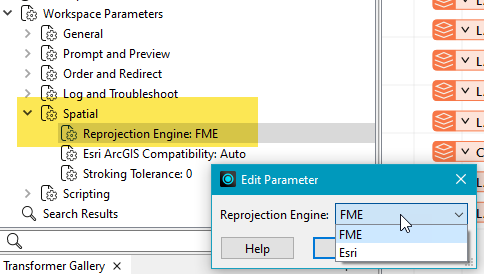
To perform a reprojection, FME typically uses the CS-MAP reprojection engine, which includes definitions for thousands of coordinate systems, with a large variety of projections, datums, ellipsoids, and units. However, GIS applications have slightly different algorithms for reprojecting data between different coordinate systems. To ensure that the data FME writes matches exactly to your existing data, you can use the reprojection engine from a different application.
To change the reprojection engine, Select Workspace Parameters > Spatial > Reprojection Engine. In the example shown, you can select Esri (but the selection here depends on your installed applications):
- The coordinate systems file coordsys.db in the FME installation folder contains the names and descriptions of all predefined coordinate systems.
- Some users may wish to use coordinate systems that do not ship with FME, and in those cases, FME also supports custom coordinate systems.
- Learn more about Working with Coordinate Systems in FME.
Orient Polygons
When writing geography (geodetic) data, polygons must be oriented according to the left-hand rule: outer boundaries must be counter-clockwise and inner boundaries must be clockwise.
The default for this parameter is Yes. If this parameter is set to No, FME will not automatically reorient polygons. You may want to set this parameter to No if your input polygons are known to have correct orientation.
Advanced
Bulk Insert
When set to Yes, this parameter changes the insert mode from feature-by-feature to batch. This can result in anywhere from six to ten times greater insertion speed. The compromise is reduced granularity in errors, with one invalid feature potentially causing the failure of a complete transaction.
In Microsoft Azure SQL Database Non-Spatial (MSSQL_AZURE), Bulk Insert is very important, as the insertion speed increase is on the order of 300x. However, for Bulk mode to work with Azure, the Server and Username parameters must be changed:
- Server: tcp:SERVERNAME.database.windows.net
- Username: USERNAME@SERVERNAME
The remaining parameters can be left unchanged.
Always Create Tables
This setting enables the creation of tables without data features.
- No – Tables are only created when receiving data features.
- Yes – Tables are created without data features if possible.
Features Per Transaction
This parameter sets the number of features to be placed in each transaction before a transaction is committed to the database.
A default value of 500 is used as the transaction interval.
If this parameter is set to 0, then feature-based transactions are used. As each feature is processed by the writer, it is checked for an attribute called fme_db_transaction. The value of this attribute specifies whether the writer should commit or roll back the current transaction.
The value of the attribute can be one of COMMIT_BEFORE, COMMIT_AFTER, ROLLBACK_AFTER, or IGNORE. If the fme_db_transaction attribute is not set in any features, then the entire write operation occurs in a single transaction.
SQL to Run Before Write
This parameter allows for the execution of SQL statements before writing to a table. For example, it may be necessary to clean up a table before attempting to write to it. The statements will be executed only when the first feature arrives at the writer.
For detailed information about SQL functions, click the corresponding menu item in the SQL to Run editor help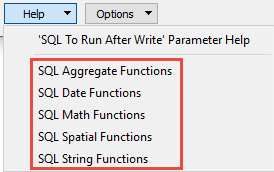 .
.
 to open the editor.
Available menu options depend on the format.
Multiple SQL commands can be delimited by a character specified using the FME_SQL_DELIMITER directive, embedded at the beginning of the SQL block. The single character following this directive will be used to split the SQL block into SQL statements, which will then be sent to the database for execution. Note: Include a space before the character.
For example:
FME_SQL_DELIMITER ;
DELETE FROM instructors ;
DELETE FROM people
WHERE LastName='Doe' AND FirstName='John'
Multiple delimiters are not allowed and the delimiter character will be stripped before being sent to the database.
Any errors occurring during the execution of these SQL statements will normally terminate the reader or writer (depending on where the SQL statement is executed) with an error. If the specified statement is preceded by a hyphen (“-”), such errors are ignored.
SQL to Run After Write
This parameter allows for the execution of SQL statements after a set of tables has been written. For example, it may be necessary to clean up a temporary view after creating it.
For detailed information about SQL functions, click the corresponding menu item in the SQL to Run editor help.
to open the editor.Available menu options depend on the format.
Multiple SQL commands can be delimited by a character specified using the FME_SQL_DELIMITER directive, embedded at the beginning of the SQL block. The single character following this directive will be used to split the SQL block into SQL statements, which will then be sent to the database for execution. Note: Include a space before the character.
For example:
FME_SQL_DELIMITER ;
DELETE FROM instructors ;
DELETE FROM people
WHERE LastName='Doe' AND FirstName='John'
Multiple delimiters are not allowed and the delimiter character will be stripped before being sent to the database.
Any errors occurring during the execution of these SQL statements will normally terminate the reader or writer (depending on where the SQL statement is executed) with an error. If the specified statement is preceded by a hyphen (“-”), such errors are ignored.
Tags mssql_ado mssql_spatial