The values set by these parameters can be overwritten if the feature itself has a value defined for that parameter. For example, although the Line Width parameter may be used to specify a default width of 5 for all lines in the file, if an ieps_polyline feature has its ieps_line_width set to a value of 2, then the line width of 2 will be used over the default value of 5.
Size
 Width (points)
Specifies the maximum EPS units (1 unit = 1/72 inch) for the width of the output map.
Default: 612
Height (points)
Specifies the maximum EPS units (1 unit = 1/72 inch) for the height of the output map.
Default: 792
Line Width (pixels)
The value in pixels of the line width.
Default: 1
The value entered for this parameter must be at least 0 (which is the thinnest printable line width).
Text Width (pixels)
This width is similar to line width, except it is applied to text features.
Default: 1
The value entered for this parameter must be at least 0, which is the thinnest printable line width.
Line Join Type
Specifies the default corner types that should be drawn onto paths.
- Square specifies a sharp corner.
- Round specifies a rounded corner.
- Butt specifies a butt-end corner.
Line Cap Type
Specifies the default cap that will be used on line segments.
- Square specifies square-end caps.
- Round specifies rounded-end caps.
- Butt specifies butt-end caps.
Map Parameters
Maintain Map Aspect Ratio
Check this option to indicate that the original map aspect will be maintained to fit within the destination-defined bounding box. This means that the entire destination bounding box defined may not used. Select No to cause the original map to be stretched onto the defined destination bounding box.
Force CMYK
- Checked – All color usage output to the IEPS file is in CMYK.
- Unchecked – This is the default. A mix of RGB and CMYK color schemes may be in the output IEPS file. However, despite forcing CMYK color output, some IEPS viewers may not support the setcmykcolor call in their library. In these cases, the actual output of colors is done using a function we define in PostScript which interfaces exactly like the setcmykcolor call, but uses setrgbcolor underneath. This will depend on the IEPS viewer you are using.
Render Type
Determines how the text is output. This value will be used as the default render type for all text in the file, but it will be overridden if the text feature has its own user-defined render type value.
These values specify the default rendering that will be applied to text features:
- 0 = fill
- 1 = stroke
- 2 (default) = stroke and fill
Lock Features
When set to Yes, all features will be locked and cannot be selected or edited in Adobe Illustrator.
Text Parameters
Text Font
Specifies the default font applied to all text features. The font must be a PostScript name.
The fonts supported depend on the destination of the IEPS file. Some typical fonts are NewBaskerville, Times, Helvetica, and Courier. The default is NewBaskerville.
Text Style
Specifies the default style to be applied to the text font of all text features. The default is Bold.
This attribute must be matched to the current font since it is the combination of text font and text style that is recognized by Adobe Illustrator.
Some typical font and style combinations are:
| NewBaskerville | None, Bold |
| Times | None, Roman, Italic, Bold, BoldItalic |
| Helvetica | None, Oblique, Bold, BoldOblique |
| Courier | None, Oblique, Bold, BoldItalic |
Note that None can be used to specify that no style should be applied to the font.
Spatial
Coordinate System
Coordinate systems may be extracted from input feature data sources, may come predefined with FME, or may be user-defined. FME allows different output and input coordinate systems, and performs the required coordinate conversions when necessary.
If a coordinate system is specified in both the source format and the workspace, the coordinate system in the workspace is used. The coordinate system specified in the source format is not used, and a warning is logged. If a source coordinate system is not specified in the workspace and the format or system does not store coordinate system information, then the coordinate system is not set for the features that are read.
If a destination coordinate system is set and the feature has been tagged with a coordinate system, then a coordinate system conversion is performed to put the feature into the destination system. This happens right before the feature enters into the writer.
If the destination coordinate system was not set, then the features are written out in their original coordinate system.
If a destination coordinate system is set, but the source coordinate system was not specified in the workspace or stored in the source format, then no conversion is performed. The features are simply tagged with the output system name before being written to the output dataset.
For systems that know their coordinate system, the Coordinate System field will display Read from Source and FME will read the coordinate system from the source dataset. For most other input sources, the field will display Unknown (which simply means that FME will use default values). In most cases, the default value is all you'll need to perform the translation.
You can always choose to override the defaults and choose a new coordinate system. Select More Coordinate Systems from the drop-down menu to open the Coordinate System Gallery.
Changing a Reprojection
To perform a reprojection, FME typically uses the CS-MAP reprojection engine, which includes definitions for thousands of coordinate systems, with a large variety of projections, datums, ellipsoids, and units. However, GIS applications have slightly different algorithms for reprojecting data between different coordinate systems. To ensure that the data FME writes matches exactly to your existing data, you can use the reprojection engine from a different application.
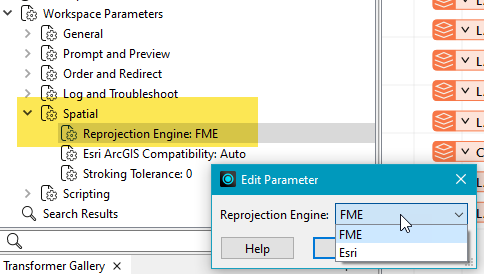
To change the reprojection engine, Select Workspace Parameters > Spatial > Reprojection Engine. In the example shown, you can select Esri (but the selection here depends on your installed applications):
- The coordinate systems file coordsys.db in the FME installation folder contains the names and descriptions of all predefined coordinate systems.
- Some users may wish to use coordinate systems that do not ship with FME, and in those cases, FME also supports custom coordinate systems.
- Learn more about Working with Coordinate Systems in FME.