Database Connection
 Connection File
This parameter identifies the pathname of a connection file to be used to connect to an Enterprise Geodatabase.
A connection file provides the necessary information to connect to the SDE server, such as the server name or the username.
The connection file must have an .sde extension and be properly formatted (as defined by Esri). Connection files can be created in ArcGIS Pro.
Override Credentials
Check this option to override the User and Password from the connection file. Overriding credentials is required for Connection Files that do not have saved credentials.
Username and Password
Enter the username and password to access the service.
Spatial
Coordinate System
Coordinate systems may be extracted from input feature data sources, may come predefined with FME, or may be user-defined. FME allows different output and input coordinate systems, and performs the required coordinate conversions when necessary.
If a coordinate system is specified in both the source format and the workspace, the coordinate system in the workspace is used. The coordinate system specified in the source format is not used, and a warning is logged. If a source coordinate system is not specified in the workspace and the format or system does not store coordinate system information, then the coordinate system is not set for the features that are read.
If a destination coordinate system is set and the feature has been tagged with a coordinate system, then a coordinate system conversion is performed to put the feature into the destination system. This happens right before the feature enters into the writer.
If the destination coordinate system was not set, then the features are written out in their original coordinate system.
If a destination coordinate system is set, but the source coordinate system was not specified in the workspace or stored in the source format, then no conversion is performed. The features are simply tagged with the output system name before being written to the output dataset.
For systems that know their coordinate system, the Coordinate System field will display Read from Source and FME will read the coordinate system from the source dataset. For most other input sources, the field will display Unknown (which simply means that FME will use default values). In most cases, the default value is all you'll need to perform the translation.
You can always choose to override the defaults and choose a new coordinate system. Select More Coordinate Systems from the drop-down menu to open the Coordinate System Gallery.
Changing a Reprojection
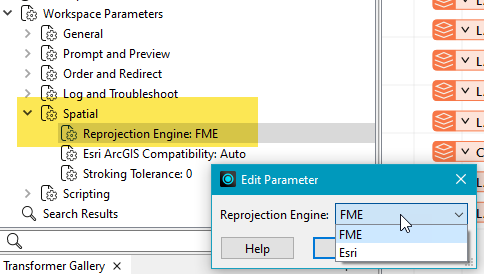
To perform a reprojection, FME typically uses the CS-MAP reprojection engine, which includes definitions for thousands of coordinate systems, with a large variety of projections, datums, ellipsoids, and units. However, GIS applications have slightly different algorithms for reprojecting data between different coordinate systems. To ensure that the data FME writes matches exactly to your existing data, you can use the reprojection engine from a different application.
To change the reprojection engine, Select Workspace Parameters > Spatial > Reprojection Engine. In the example shown, you can select Esri (but the selection here depends on your installed applications):
- The coordinate systems file coordsys.db in the FME installation folder contains the names and descriptions of all predefined coordinate systems.
- Some users may wish to use coordinate systems that do not ship with FME, and in those cases, FME also supports custom coordinate systems.
- Learn more about Working with Coordinate Systems in FME.
Advanced
Persistent Connection
When enabled, the database connection persists for the duration of an FME session.
For example, it may be desirable to maintain a connection when running a batch of 100 workspaces on the same database connection, which saves the processing time required to make and break a database connection.
FME considers the database connection to be the same when the database name, the username, and password are the same.
Compression Type
This parameter defines the type of compression to use on mosaic dataset overviews.
Values:
- JPEG
- JPEG2000 – Available only on rasters with an 8-bit pixel depth and no colormap
- LZ77 – The only valid compression option for images with a colormap.
- None
Compression Quality
The degree of lossiness caused by the compression. Valid values are integers from 0 (lowest quality) to 100 (highest quality).
This value is ignored when not using one of the JPEG compression types.
Overview Resample Type
Determines the resampling type to be used when generating reduced resolution overviews on the destination mosaic dataset.
Nearest Neighbor is the default value, which provides the fastest output but the poorest quality. Cubic Convolution provides the best quality, but can reduce performance when writing.
- Nearest (Neighbor) (default) is the fastest but produces the poorest image quality.
- Bilinear provides a reasonable intermediate option.
- Bicubic is the slowest but produces the best image quality.
Number of Levels
Specifies the number of levels of overviews build. A value of -1 will determine an optimal value.
More overviews enable better performance when viewing raster data using FME and Esri products.
Ignore Failed Features
This parameter tells the writer whether it should ignore features that would usually cause the translation to fail. This includes features that are topologically incorrect, are not supported by the writer, or conflict with the definition of the table to which it is to be inserted (that is, they are outside of the geometry envelope specified by the feature class). Additionally, the writer will also ignore polygons, donuts, or aggregates of polygons/donuts that cannot be reoriented.
The default setting is No, which means that failed features are not ignored and will cause the translation to fail when encountered.
Max Number of Features to Ignore
This parameter sets the number of features to ignore before causing a translation to fail due to a problematic feature. (However, the translation may still fail for other reasons.)
Values: To ignore all failed features: -1; otherwise 0 or a positive integer.
Dump Failed Features to File
This parameter allows you to store the failed features to an FFS file for later viewing.
Failed Feature Dump Filename
This parameter allows you to specify an FME Feature Store (FFS) file to store any failed features.
This file will be created automatically, but will only be created if there is a failed feature.
This parameter is required when Dump Failed Features to File is set to Yes.
Values: path and filename
If either the path or the filename contains a space, the value must be enclosed in double quotation marks. The filename must end in the extension .ffs.