 About Database Connections
|
Database formats include a Database Connection parameter that defines and stores authentication information. For general information about sharing database connections, please see Using Database Connections. Note that Database Connection parameters differ slightly, depending on context and/or database format. |
|
Connection From the Connection parameter in a database format, you can do one of the following:
|
| Adding a Database Connection for Intergraph GeoMedia Access Warehouse and GeoMedia SQL Server Warehouse |
|---|
|
Note that parameter selection may vary, depending on the format and Authentication method. Name
Entering a descriptive name allows you to easily find the connection in future workspaces. The following characters are not allowed in connection names: ^ \ / : * ? " < > | & = ' + % # Server
Specifies the name of the server hosting the Microsoft SQL Server that stores the GeoMedia warehouse. Database
The name of the database to connect to. Authentication
When connecting through a Windows user account, select Windows Authentication. The database can validate the account name and password using the Windows principal token in the operating system. The user account is retrieved by Windows, so if you choose Windows Authentication, the Username and Password parameters are ignored. Select SQL Server Authentication to proceed with specifying login credentials through the Username and Password parameters. Username and Password
When Authentication is set to SQL Server Authentication, enter the username and password to access the database. |
Text Options
Plain Text
Specifies that features of FME type fme_text are written in plain text.
If this option is left unchecked, the writer formats text objects in rich text format (RTF) to insert the text size as part of the object, since text size cannot be set any other way during translation. The default font size is 10 unless the font size is specified in the Font Size parameter.
Font Size
Specifies the RTF font size, in points.
Allowed font size is between 1 to 1024 inclusive.
GeoMedia Warehouse Version
GeoMedia Warehouse Version
Specifies the version of the GeoMedia warehouse to write to. By default, the writer determines the version of the existing warehouse and writes to it regardless of this setting. If the warehouse does not exist, or the existing version is not supported by FME, the writer creates one according to the version specified.
Case Conversion
These parameters change the case of all feature type and attribute names in the output.
Feature Type Names
- UPPERCASE – Change all feature type names to uppercase text.
- lowercase – Change all feature type names to lowercase text.
- None – Do not make changes to any feature type names.
Attribute Names
- UPPERCASE – Change all attribute names to uppercase text.
- lowercase – Change all attribute names to lowercase text.
- None – Do not make changes to any attribute names.
Spatial
Coordinate System
Coordinate systems may be extracted from input feature data sources, may come predefined with FME, or may be user-defined. FME allows different output and input coordinate systems, and performs the required coordinate conversions when necessary.
If a coordinate system is specified in both the source format and the workspace, the coordinate system in the workspace is used. The coordinate system specified in the source format is not used, and a warning is logged. If a source coordinate system is not specified in the workspace and the format or system does not store coordinate system information, then the coordinate system is not set for the features that are read.
If a destination coordinate system is set and the feature has been tagged with a coordinate system, then a coordinate system conversion is performed to put the feature into the destination system. This happens right before the feature enters into the writer.
If the destination coordinate system was not set, then the features are written out in their original coordinate system.
If a destination coordinate system is set, but the source coordinate system was not specified in the workspace or stored in the source format, then no conversion is performed. The features are simply tagged with the output system name before being written to the output dataset.
For systems that know their coordinate system, the Coordinate System field will display Read from Source and FME will read the coordinate system from the source dataset. For most other input sources, the field will display Unknown (which simply means that FME will use default values). In most cases, the default value is all you'll need to perform the translation.
You can always choose to override the defaults and choose a new coordinate system. Select More Coordinate Systems from the drop-down menu to open the Coordinate System Gallery.
Changing a Reprojection
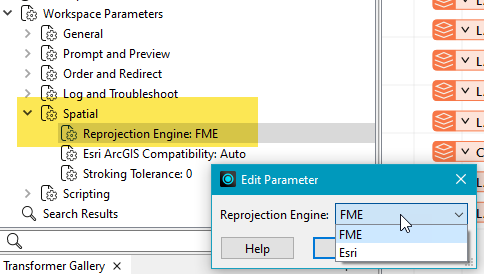
To perform a reprojection, FME typically uses the CS-MAP reprojection engine, which includes definitions for thousands of coordinate systems, with a large variety of projections, datums, ellipsoids, and units. However, GIS applications have slightly different algorithms for reprojecting data between different coordinate systems. To ensure that the data FME writes matches exactly to your existing data, you can use the reprojection engine from a different application.
To change the reprojection engine, Select Workspace Parameters > Spatial > Reprojection Engine. In the example shown, you can select Esri (but the selection here depends on your installed applications):
- The coordinate systems file coordsys.db in the FME installation folder contains the names and descriptions of all predefined coordinate systems.
- Some users may wish to use coordinate systems that do not ship with FME, and in those cases, FME also supports custom coordinate systems.
- Learn more about Working with Coordinate Systems in FME.
Advanced
Start Transaction At
Tells the writer when to start actually writing features into the database. The writer does not write any features until the feature is reached that belongs to the transaction number of the last successful transaction + 1. A value of zero causes every feature to be output. Normally, a non-zero value is only specified when a data load operation is resumed after failing partway through.
Features Per Transaction
The number of features to place in each transaction before a transaction is committed to the database.
Immediate write
Instructs FME to immediately write each row of data to the database, rather than batching up writes into bulk arrays. Bulk arrays are normally preferred, as they require fewer queries sent to the database to store the data.