General
 Output Format
Different versions of the FBX format exist, and both ASCII and binary are supported.
This parameter allows you to select the version. This can be useful if the written file is going to be consumed by an older application (for example, some apps have been observed to support FBX 7.x but not 6.x).
Embed Textures
If the value is Yes, and the Output Format supports it (only FBX 6.1 ASCII does not), texture files will be embedded in the created .fbx file.
Otherwise, each texture will be written to its own file in a subfolder next to the .fbx file. The subfolder will have the same base name as the .fbx file, and the extension .fbm.
Spatial
Coordinate System
Coordinate systems may be extracted from input feature data sources, may come predefined with FME, or may be user-defined. FME allows different output and input coordinate systems, and performs the required coordinate conversions when necessary.
If a coordinate system is specified in both the source format and the workspace, the coordinate system in the workspace is used. The coordinate system specified in the source format is not used, and a warning is logged. If a source coordinate system is not specified in the workspace and the format or system does not store coordinate system information, then the coordinate system is not set for the features that are read.
If a destination coordinate system is set and the feature has been tagged with a coordinate system, then a coordinate system conversion is performed to put the feature into the destination system. This happens right before the feature enters into the writer.
If the destination coordinate system was not set, then the features are written out in their original coordinate system.
If a destination coordinate system is set, but the source coordinate system was not specified in the workspace or stored in the source format, then no conversion is performed. The features are simply tagged with the output system name before being written to the output dataset.
For systems that know their coordinate system, the Coordinate System field will display Read from Source and FME will read the coordinate system from the source dataset. For most other input sources, the field will display Unknown (which simply means that FME will use default values). In most cases, the default value is all you'll need to perform the translation.
You can always choose to override the defaults and choose a new coordinate system. Select More Coordinate Systems from the drop-down menu to open the Coordinate System Gallery.
Changing a Reprojection
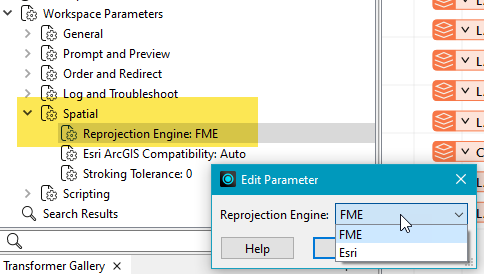
To perform a reprojection, FME typically uses the CS-MAP reprojection engine, which includes definitions for thousands of coordinate systems, with a large variety of projections, datums, ellipsoids, and units. However, GIS applications have slightly different algorithms for reprojecting data between different coordinate systems. To ensure that the data FME writes matches exactly to your existing data, you can use the reprojection engine from a different application.
To change the reprojection engine, Select Workspace Parameters > Spatial > Reprojection Engine. In the example shown, you can select Esri (but the selection here depends on your installed applications):
- The coordinate systems file coordsys.db in the FME installation folder contains the names and descriptions of all predefined coordinate systems.
- Some users may wish to use coordinate systems that do not ship with FME, and in those cases, FME also supports custom coordinate systems.
- Learn more about Working with Coordinate Systems in FME.
Move to Local Coordinate System
Note that the options described below are not available in all formats.
- Yes – Coordinates of all the points in the written features will be normalized to the interval [-0.5, 0.5] on the largest side of their XYZ-bounding cube. The other dimensions will be scaled proportionally. Additionally, the transformation matrix required to scale the model back to world coordinates will be written to a companion .fwt file. This can be used to improve precision of the written coordinates. The companion .fwt file will have the same name as the primary data file and will be written in the same folder. For folder-based formats, the file global.fwt will be written instead.
- No – The original coordinates will be written as provided. Coordinates will not be projected; .fwt world and .prj files will not be generated.
- Create Projection File Only – A companion .prj file containing the coordinate system and having the same name as the primary data file will be written in the same folder. For folder-based formats, the file global.prj will be written instead. Coordinates will not be projected and a world file will not be generated.
- Transform Coordinates Only – Transforms the coordinates as in the Yes option, but companion .prj and .fwt world files will not be generated.