Production
 Producing Agency
Sets the producer agency code for the generated cells. The first two characters should be the DIA country code followed by additional code information provided by the national defense mapping agency.
Production Date
The date the data was compiled. This date should be the most descriptive date in YYMM format.
Vertical Accuracy
This parameter may be used to set the absolute vertical accuracy (User Header Label [UHL] record, characters 29 to 33) with 90% assurance that the linear errors will not exceed this value relative to mean sea level. Valid values are integral numbers in the range 0000-9999 with leading zeros. By default, the value NA is used, indicating the vertical accuracy information is not available.
Create Subfolders
- Yes – Creates subfolder structure with tiles stored in subfolders by longitude, with files named by latitude.
- No (default) –Creates files with no subfolder naming structure.
For example, if the output is specified by data written to the 1 degree square at 80 degrees west, and 43 degrees north, and Dataset is C:\Output\Data:
- No – The output will be a file written to C:\Output\Data\w080n043.dt1.
- Yes – The output will be written to C:\Output\Data\w80\n43.dt1.
Security
Level
This setting defines the security classification code field in the Data Set Identification (DSI) record (character 4).
The default value is Unclassified.
Resolution Level
The product level to use. Near the Equator, products have the following resolutions for a one-degree square cell:
- 0 – 121x121 (30 arc second postings)
- 1 – 1201x1201 (3 arc second postings)
- 2 – 3601x3601 (1 arc second postings)
- Auto (default) – If the source format is DTED, Auto will use the resolution level of the source data. If the source format is not DTED, Auto sets the default resolution to “1” .
Spatial
Coordinate System
Coordinate systems may be extracted from input feature data sources, may come predefined with FME, or may be user-defined. FME allows different output and input coordinate systems, and performs the required coordinate conversions when necessary.
If a coordinate system is specified in both the source format and the workspace, the coordinate system in the workspace is used. The coordinate system specified in the source format is not used, and a warning is logged. If a source coordinate system is not specified in the workspace and the format or system does not store coordinate system information, then the coordinate system is not set for the features that are read.
If a destination coordinate system is set and the feature has been tagged with a coordinate system, then a coordinate system conversion is performed to put the feature into the destination system. This happens right before the feature enters into the writer.
If the destination coordinate system was not set, then the features are written out in their original coordinate system.
If a destination coordinate system is set, but the source coordinate system was not specified in the workspace or stored in the source format, then no conversion is performed. The features are simply tagged with the output system name before being written to the output dataset.
For systems that know their coordinate system, the Coordinate System field will display Read from Source and FME will read the coordinate system from the source dataset. For most other input sources, the field will display Unknown (which simply means that FME will use default values). In most cases, the default value is all you'll need to perform the translation.
You can always choose to override the defaults and choose a new coordinate system. Select More Coordinate Systems from the drop-down menu to open the Coordinate System Gallery.
Changing a Reprojection
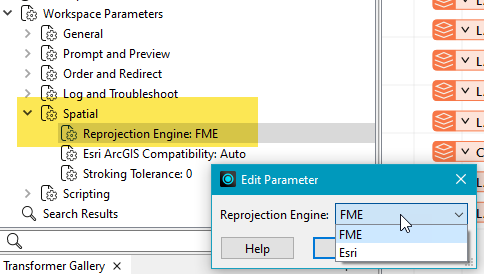
To perform a reprojection, FME typically uses the CS-MAP reprojection engine, which includes definitions for thousands of coordinate systems, with a large variety of projections, datums, ellipsoids, and units. However, GIS applications have slightly different algorithms for reprojecting data between different coordinate systems. To ensure that the data FME writes matches exactly to your existing data, you can use the reprojection engine from a different application.
To change the reprojection engine, Select Workspace Parameters > Spatial > Reprojection Engine. In the example shown, you can select Esri (but the selection here depends on your installed applications):
- The coordinate systems file coordsys.db in the FME installation folder contains the names and descriptions of all predefined coordinate systems.
- Some users may wish to use coordinate systems that do not ship with FME, and in those cases, FME also supports custom coordinate systems.
- Learn more about Working with Coordinate Systems in FME.