 About Database Connections
|
Database formats include a Database Connection parameter that defines and stores authentication information. For general information about sharing database connections, please see Using Database Connections. Note that Database Connection parameters differ slightly, depending on context and/or database format. |
|
Connection From the Connection parameter in a database format, you can do one of the following:
|
Database Connection
Select an existing Microsoft Azure Cosmos DB database connection, or Add Database Connection...
|
Add Microsoft Azure Cosmos DB Database Connection To define a new connection from the Connection parameter, see the topic Microsoft Azure Cosmos DB: Add Database Connection |
Collections
Collections correspond to Feature Types in FME. This parameter lets you browse and select Collections for which to generate Feature Types.
Document Query Options
Cross-Partition Query
This parameter corresponds to the x-ms-documentdb-query-enablecrosspartition header.
If your query is against a partitioned Collection but does not filter on a Partition Key, you must enable this parameter.
Partition Key
This parameter corresponds to the x-ms-documentdb-partitionkey header.
The value will be converted to a JSON array with a single string element if it does not already appear to be one. This is the format required for the header.
Schema Attributes
Additional Attributes to Expose
Use this parameter to expose Format Attributes in FME Workbench when you create a workspace:
- In a dynamic scenario, it means these attributes can be passed to the output dataset at runtime.
- In a non-dynamic scenario, this parameter allows you to expose additional attributes on multiple feature types. Click the browse button to view the available format attributes (which are different for each format) for the reader.
Spatial
Coordinate System
Coordinate systems may be extracted from input feature data sources, may come predefined with FME, or may be user-defined. FME allows different output and input coordinate systems, and performs the required coordinate conversions when necessary.
If a coordinate system is specified in both the source format and the workspace, the coordinate system in the workspace is used. The coordinate system specified in the source format is not used, and a warning is logged. If a source coordinate system is not specified in the workspace and the format or system does not store coordinate system information, then the coordinate system is not set for the features that are read.
If a destination coordinate system is set and the feature has been tagged with a coordinate system, then a coordinate system conversion is performed to put the feature into the destination system. This happens right before the feature enters into the writer.
If the destination coordinate system was not set, then the features are written out in their original coordinate system.
If a destination coordinate system is set, but the source coordinate system was not specified in the workspace or stored in the source format, then no conversion is performed. The features are simply tagged with the output system name before being written to the output dataset.
For systems that know their coordinate system, the Coordinate System field will display Read from Source and FME will read the coordinate system from the source dataset. For most other input sources, the field will display Unknown (which simply means that FME will use default values). In most cases, the default value is all you'll need to perform the translation.
You can always choose to override the defaults and choose a new coordinate system. Select More Coordinate Systems from the drop-down menu to open the Coordinate System Gallery.
Changing a Reprojection
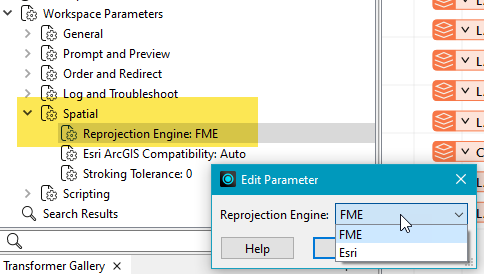
To perform a reprojection, FME typically uses the CS-MAP reprojection engine, which includes definitions for thousands of coordinate systems, with a large variety of projections, datums, ellipsoids, and units. However, GIS applications have slightly different algorithms for reprojecting data between different coordinate systems. To ensure that the data FME writes matches exactly to your existing data, you can use the reprojection engine from a different application.
To change the reprojection engine, Select Workspace Parameters > Spatial > Reprojection Engine. In the example shown, you can select Esri (but the selection here depends on your installed applications):
- The coordinate systems file coordsys.db in the FME installation folder contains the names and descriptions of all predefined coordinate systems.
- Some users may wish to use coordinate systems that do not ship with FME, and in those cases, FME also supports custom coordinate systems.
- Learn more about Working with Coordinate Systems in FME.
Advanced
Features Per Request
Cosmos DB paginates query results. This parameter specifies the maximum number of Documents (features) that may be returned in each page.
Valid values: 1 to 1000
Default value: 1000
Retries After Throttling
This parameter specifies the maximum number of times to reattempt a request that is rate-limited by the server. The server performs rate-limiting when the size and frequency of requests exceeds the Collection’s provisioned throughput.
If the request continues to be rate-limited after retrying for the specified number of times, the writer logs a warning and skips the request.
Default: 3
Read Original JSON Document
If this parameter is set to Yes, the complete JSON for each Document is included in the documentdb_json format attribute.
Default: No
Verify HTTPS Certificate
- Yes (default) – Ensures that a URL's digital certificate is valid (signed by a trusted certificate authority), trusted, and belongs to the domain to which you are connecting.
- No – Verification will not be performed (that is, there is no verification that the URL’s certificate is valid or trusted).
How FME Processes Multiple Verification Parameters in a Workspace
FME evaluates the setting at the workspace component level. If a reader/writer or web connection has the Verify HTTPS Certificate(s) parameter set to Yes, and an HTTPCaller transformer has the Verify HTTPS Certificate(s) parameter set to No, then the reader will verify certificates for its data requests, but the transformer will not verify certificates for its own requests.
FME does not combine multiple verification parameters — it uses the parameter local to the reader/writer, transformer, or web connection that is making the web call.
It is good practice to ensure that all Verify HTTPS Certificate(s) parameters in a workspace are set to Yes.
- On MacOS, requests to some servers will not work unless this parameter is set to Yes.
- The value of the Verify HTTPS Certificate parameter takes priority over the value of the Verify SSL Certificates parameter, which may be defined by the Web Connection used with this format.