Output File Parameters
 Extension
Enter the file name extension for the output file. The default is .csv.
Overwrite Existing File
This option is used only when adding a new writer and serves to provide a default value for any feature types associated with this writer, setting the option with the same name.
- Yes – Existing files will be overwritten if a matching CSV file was found in the destination folder.
- No – Rows will be appended to existing files if a matching CSV file was found in the destination folder.
Fields
Delimiter Character
The single-character or tab character specified as the delimiter between values. The default is the comma character.
Write Field Names Row
Specifies whether to write a row containing the field names to the output file.
When this parameter is set to If Writing First Row, the field names will only be written when writing a new file – that is, when Overwrite Existing File is set to Yes (or it is set to No and there is no existing file).
Encoding
Character Encoding
This parameter is applicable if you are working with extended (not basic ASCII) character sets. If your source data contains non-ASCII characters, using this parameter along with the encoding value ensures that the original data is preserved from the reader to the writer.
By default, the writer produces UTF-8 encoded documents.
FME supports most encodings.
Write Byte Order Mark for Unicode
Specifies whether the Byte Order Mark (BOM) for a UTF-encoded file should be written at the beginning.
This option applies only when the character encoding is set to a UTF encoding.
Spatial
Populate Coordinate Fields From Geometry
If this option is checked, the writer will populate fields that represent coordinates with values from a feature’s point geometry rather than from the fields’ corresponding attributes. Fields such as x and y or lat and long are determined based on the value of Coordinate Field Detection. If an incoming feature does not have a point geometry, the feature’s attribute values will be used.
If no Coordinate System is specified, FME will try to determine the output coordinate system from the attribute names if possible. For example, lat and long imply coordinate system LL-WGS84.
For more information, see Latitude/Longitude and x, y, z coordinates.
Coordinate System
Coordinate systems may be extracted from input feature data sources, may come predefined with FME, or may be user-defined. FME allows different output and input coordinate systems, and performs the required coordinate conversions when necessary.
If a coordinate system is specified in both the source format and the workspace, the coordinate system in the workspace is used. The coordinate system specified in the source format is not used, and a warning is logged. If a source coordinate system is not specified in the workspace and the format or system does not store coordinate system information, then the coordinate system is not set for the features that are read.
If a destination coordinate system is set and the feature has been tagged with a coordinate system, then a coordinate system conversion is performed to put the feature into the destination system. This happens right before the feature enters into the writer.
If the destination coordinate system was not set, then the features are written out in their original coordinate system.
If a destination coordinate system is set, but the source coordinate system was not specified in the workspace or stored in the source format, then no conversion is performed. The features are simply tagged with the output system name before being written to the output dataset.
For systems that know their coordinate system, the Coordinate System field will display Read from Source and FME will read the coordinate system from the source dataset. For most other input sources, the field will display Unknown (which simply means that FME will use default values). In most cases, the default value is all you'll need to perform the translation.
You can always choose to override the defaults and choose a new coordinate system. Select More Coordinate Systems from the drop-down menu to open the Coordinate System Gallery.
Changing a Reprojection
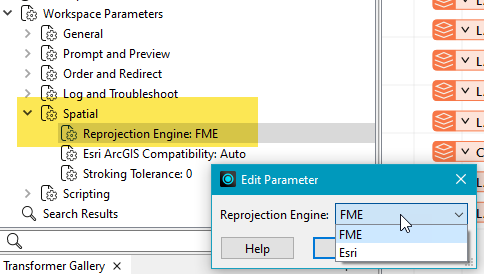
To perform a reprojection, FME typically uses the CS-MAP reprojection engine, which includes definitions for thousands of coordinate systems, with a large variety of projections, datums, ellipsoids, and units. However, GIS applications have slightly different algorithms for reprojecting data between different coordinate systems. To ensure that the data FME writes matches exactly to your existing data, you can use the reprojection engine from a different application.
To change the reprojection engine, Select Workspace Parameters > Spatial > Reprojection Engine. In the example shown, you can select Esri (but the selection here depends on your installed applications):
- The coordinate systems file coordsys.db in the FME installation folder contains the names and descriptions of all predefined coordinate systems.
- Some users may wish to use coordinate systems that do not ship with FME, and in those cases, FME also supports custom coordinate systems.
- Learn more about Working with Coordinate Systems in FME.
Coordinate Field Detection
Choose how FME should determine which fields are coordinate fields.
- Automatic – FME will make a best guess based on attribute names such as x, y_coord, lat, etc.
- Manual – Allows you to directly specify which attribute names correspond to which coordinate.
X Coordinate Field
If Coordinate Field Detection is Manual, specify the attribute representing the X coordinate to be replaced by incoming features’ point geometry X coordinates.
Y Coordinate Field
If Coordinate Field Detection is Manual, specify the attribute representing the Y coordinate to be replaced by incoming features’ point geometry Y coordinates.
Z Coordinate Field
If Coordinate Field Detection is Manual, specify the attribute representing the Z coordinate to be replaced by incoming features’ point geometry Z coordinates.
Advanced
Unsafe Characters
Several of the parameters below reference “unsafe” characters. These are characters that could cause the output file to be misinterpreted when present in an attribute value. Here are some examples of unsafe characters:
|
Character Type |
Example |
|---|---|
|
Delimiters |
An attribute whose value is abc,def would be interpreted as two fields when read back, rather than one field. |
|
Leading field qualifiers |
An attribute whose value is abc would cause all values after that to be interpreted as part of the same value if there was no closing field qualifier. |
|
Newlines |
An attribute whose value is abc def would be interpreted as two separate lines. |
By default the writer will enclose values that contain unsafe characters in the field qualifier character, which should allow them to be interpreted correctly. However, there are options to adjust this handling.
Qualify Field Names
Specifies whether the field names written on the first row of the file are quoted.
- Yes – Field Names will be quoted.
- No – Field names will not be quoted.
- If Needed – This is the default choice. Field names will be quoted if they contain one or more unsafe characters.
Qualify Field Values
Specifies whether the field values should be qualified (that is, enclosed in field qualifier characters).
- Yes – Every field, including Field Names, is quoted.
- No – Zero fields are quoted. (Note that this does not guarantee that values will be unmodified.)
- If Needed – This is the default choice. Values will be quoted if they contain one or more unsafe characters.
Unqualified Field Value Handling
When Qualify Field Values is set to No, this parameter tells the writer what to do when a value contains an "unsafe" character (such as a delimiter or a leading field qualifier). The usual behavior is to Remove Unsafe Characters and log a warning.
In some cases, however, you might want to preserve these characters even if they can produce inconsistent data. If you choose to Preserve Unsafe Characters, you should ensure that you understand how this parameter will affect your output data.
Say, for example, you are writing the following two values:
a = ""abc""
b = def"
FME will strip all leading field qualifiers, and write the line:
abc"",def"
If read back, the values would look like this:
a = abc""
b = def"
Remove Unsafe Characters – Unsafe characters will be removed from the value to ensure the file can be read correctly. For example, a value abc,def will be written as abc def (the delimiter will be removed). This is the default choice. The following characters will be removed:
- Delimiters will be replaced by a space. If the delimiter is a space, it will be replaced by a vertical bar |
- Leading field qualifiers will be removed
- Newlines will be removed
Preserve Unsafe Characters – Unsafe characters will be written as-is.
Treat Embedded Field Qualifiers As Unsafe
Specifies whether to treat embedded field qualifiers as unsafe. Affects both field name and value qualifications.
- Yes (default) – A qualifier character at any position is considered unsafe.
- No – Only leading field qualifiers are considered unsafe.
Prevent Formula Injection
Specifies whether to escape values that could be interpreted as formulas or commands by spreadsheet software (such as Microsoft Excel or Google Sheets). This protects against CSV Injection attacks by prepending an escape character (a single quote ') to any field that might trigger automatic execution.
- Yes (default) – Values starting with =, +, -, or @, ignoring leading whitespace, are automatically escaped. If Qualify Field Values is No and Unqualified Field Handling is Preserve Unsafe Characters, substrings between embedded delimiters are also checked and escaped.
-
No – Values are written exactly as provided.
Note Setting this parameter to No may pose a security risk if the output file is opened in a spreadsheet application that executes formulas.
Field Qualifier Character
Specifies the character that encloses field values. The default is the quotation mark character.
When a field starts with this character, all text that follows this character and precedes the next occurrence of the character will be treated as one value, even if that text contains a delimiter or newline character.
Field Qualifier Escape Character
Specifies the character that escapes the field qualifier character.
This is used when you want to have a field qualifier literal within a field qualifier group.
Row Termination
Specifies end-of-line character to use.
Write Schema Configuration File
A schema configuration file contains formatting information about text files located in the same file directory. These files are always named schema.ini and contain information about field names and types, the field separation character, and more. This file can be used when loading table data into ArcGIS. See https://msdn.microsoft.com/en-us/library/ms709353(v=vs.85).aspx for more details.
- When this option is checked, schema configuration file is created along with the output CSV file(s).
- When this option is unchecked, a schema configuration file is not created.
Existing Schema File Handling
Specifies whether entries will be prepended to an existing schema file if one already exists.
- Overwrite – Overwrite the existing schema.ini files, if any are present.
- Prepend – If a schema.ini file already exists in the output directory, prepend new information to the existing file.