 CityJSON Version
Specifies the version of CityJSON to be written.
Currently, the only available option is the latest version: 1.0.1. These options will be expanded in a future version.
Remove duplicate vertices
CityJSON uses the indexing mechanism of the format Wavefront OBJ format (among others) for the geometries. That is, a geometry does not store the (x, y, z) of its vertices, but points to a vertex in a list (property "vertices" in the CityJSON Object).
When set to Yes, this option removes the duplicates.
Starting Schema
Specifies how to prepopulate the schema.
- 1.0.1 will add all available feature types available for CityJSON 1.0.1. A Select Feature Types dialog will open at the end of writer creation, from which you can select/deselect feature types.
- None will not add any feature types to the schema, and the schema must be manually populated.
Preferred Texture Format
Specifies the preferred format for associated texture files.
Possible values are:
- Auto (default) – Will try to preserve any JPEGs as JPEGs, and save everything else as PNGs.
- PNG – Will save everything as PNGs.
- JPEG – Will save everything as JPEGs.
If the preferred format is ignored, a message is added to the log file. Possible reasons that the preference will be ignored include a lack of raster palette support, alpha channel support, or color depth support in the selected format.
Formatting Parameters
Formatting Type
Specifies how to arrange the line breaks in the output file.
- Linear will put everything on a single line, with no line breaks.
- Pretty Print will break the output across multiple lines, allowing for easier reading by humans.
Indent Size
Specifies how many indent characters to use when formatting with the Pretty Print option.
Indent Characters
Specifies which character to use for indenting with Pretty Print formatting. Options comprise Spaces and Tabs.
Spatial
Coordinate System
Coordinate systems may be extracted from input feature data sources, may come predefined with FME, or may be user-defined. FME allows different output and input coordinate systems, and performs the required coordinate conversions when necessary.
If a coordinate system is specified in both the source format and the workspace, the coordinate system in the workspace is used. The coordinate system specified in the source format is not used, and a warning is logged. If a source coordinate system is not specified in the workspace and the format or system does not store coordinate system information, then the coordinate system is not set for the features that are read.
If a destination coordinate system is set and the feature has been tagged with a coordinate system, then a coordinate system conversion is performed to put the feature into the destination system. This happens right before the feature enters into the writer.
If the destination coordinate system was not set, then the features are written out in their original coordinate system.
If a destination coordinate system is set, but the source coordinate system was not specified in the workspace or stored in the source format, then no conversion is performed. The features are simply tagged with the output system name before being written to the output dataset.
For systems that know their coordinate system, the Coordinate System field will display Read from Source and FME will read the coordinate system from the source dataset. For most other input sources, the field will display Unknown (which simply means that FME will use default values). In most cases, the default value is all you'll need to perform the translation.
You can always choose to override the defaults and choose a new coordinate system. Select More Coordinate Systems from the drop-down menu to open the Coordinate System Gallery.
Changing a Reprojection
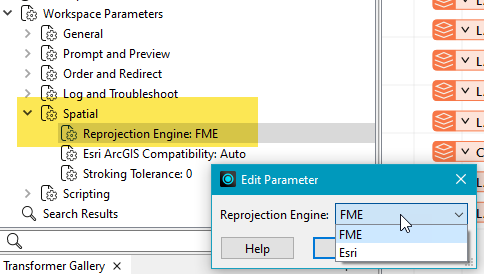
To perform a reprojection, FME typically uses the CS-MAP reprojection engine, which includes definitions for thousands of coordinate systems, with a large variety of projections, datums, ellipsoids, and units. However, GIS applications have slightly different algorithms for reprojecting data between different coordinate systems. To ensure that the data FME writes matches exactly to your existing data, you can use the reprojection engine from a different application.
To change the reprojection engine, Select Workspace Parameters > Spatial > Reprojection Engine. In the example shown, you can select Esri (but the selection here depends on your installed applications):
- The coordinate systems file coordsys.db in the FME installation folder contains the names and descriptions of all predefined coordinate systems.
- Some users may wish to use coordinate systems that do not ship with FME, and in those cases, FME also supports custom coordinate systems.
- Learn more about Working with Coordinate Systems in FME.
Compress/quantize the coordinates
CityJSON offers the possibility to compress files by using “quantization” of the vertices. For information, see the CityJSON Transform Object.
The compression uses a translation (scale and offset) so that the coordinates can be stored in a more efficient manner.
Coordinate Precision (Maximum Number of Fractional Digits)
Specifies how many digits to preserve after the decimal. Trailing zeros will be dropped.