Attribute Output
This parameter specifies the default manner in which attribute data will be stored. Note that storing attributes may greatly increase the size of the output AutoCAD file.
Extended Entity Data
Attribute: extended_entity_data
If selected, attempts to store schema attributes on a layer as extended entity data. For more information, see Extended Entity Data.
Specifies whether the writer should attempt to store schema attributes on a layer as insert attributes for block insert features, or new block features.
If selected, when it creates the inserts, the writer attempts to add the schema attributes defined by the layer definition. In this case, any format specific insert attributes in the fme_attrib_info list attributes are ignored.
If not selected, the writer attempts to write fme_attrib_info list attributes (added by the AutoCAD reader) as insert attributes. Note that this is only done if the autocad_attributes_follow attribute is set. The AutoCAD reader automatically sets this attribute.
Limited (default)
Attribute: external_attributes
Instructs the writer to not store any attribution in the AutoCAD file, with the exception of extended entity data list formatted.
Insert attributes may also be created for insert entities, from fme_attrib_info list, if the autocad_attributes_follow attribute is set.
File Options
 AutoCAD Version
Specify the AutoCAD release that will be compatible with the output file.
Template File
Template File
A template file is an AutoCAD file that defines layers, line styles, blocks and shape definitions which are referenced during translation. This option allows you to define the template file by entering a template filename or browsing to a file location.
Preserve Model Space Data
This parameter can be used to allow the file specified in the Destination Autodesk AutoCAD File parameter to be written as the concatenation of the Model Space contents of the file specified by the Template File parameter with all written data.
- No (default) – Only header information is used from the template file if one is specified. No Model Space entities are used.
- Yes – The full header and Model Space entities are used from the template file.
Preserve Paper Space Data
This parameter can be used to allow the file specified in the Destination Autodesk AutoCAD File parameter to be written as the concatenation of the Paper Space contents of the file specified by the Template File parameter with all written data.
- Yes (default) – The Paper Space entities are used from the template file if one is specified.
- No – The Paper Space entities are not used from the template file.
Spatial
Coordinate System
Coordinate systems may be extracted from input feature data sources, may come predefined with FME, or may be user-defined. FME allows different output and input coordinate systems, and performs the required coordinate conversions when necessary.
If a coordinate system is specified in both the source format and the workspace, the coordinate system in the workspace is used. The coordinate system specified in the source format is not used, and a warning is logged. If a source coordinate system is not specified in the workspace and the format or system does not store coordinate system information, then the coordinate system is not set for the features that are read.
If a destination coordinate system is set and the feature has been tagged with a coordinate system, then a coordinate system conversion is performed to put the feature into the destination system. This happens right before the feature enters into the writer.
If the destination coordinate system was not set, then the features are written out in their original coordinate system.
If a destination coordinate system is set, but the source coordinate system was not specified in the workspace or stored in the source format, then no conversion is performed. The features are simply tagged with the output system name before being written to the output dataset.
For systems that know their coordinate system, the Coordinate System field will display Read from Source and FME will read the coordinate system from the source dataset. For most other input sources, the field will display Unknown (which simply means that FME will use default values). In most cases, the default value is all you'll need to perform the translation.
You can always choose to override the defaults and choose a new coordinate system. Select More Coordinate Systems from the drop-down menu to open the Coordinate System Gallery.
Changing a Reprojection
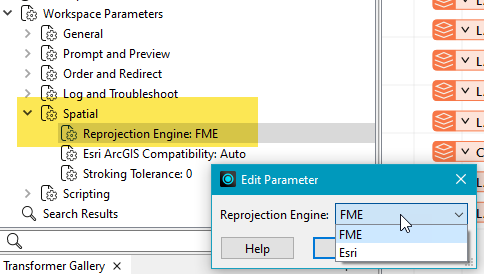
To perform a reprojection, FME typically uses the CS-MAP reprojection engine, which includes definitions for thousands of coordinate systems, with a large variety of projections, datums, ellipsoids, and units. However, GIS applications have slightly different algorithms for reprojecting data between different coordinate systems. To ensure that the data FME writes matches exactly to your existing data, you can use the reprojection engine from a different application.
To change the reprojection engine, Select Workspace Parameters > Spatial > Reprojection Engine. In the example shown, you can select Esri (but the selection here depends on your installed applications):
- The coordinate systems file coordsys.db in the FME installation folder contains the names and descriptions of all predefined coordinate systems.
- Some users may wish to use coordinate systems that do not ship with FME, and in those cases, FME also supports custom coordinate systems.
- Learn more about Working with Coordinate Systems in FME.
Coordinate System Storage
This parameter controls whether the writer will optionally store the coordinate system of its features. The coordinate system can be stored in the following ways:
- None – Projection information is not stored anywhere.
- External PRJ – Externally in a companion Esri .prj file that shares the output AutoCAD file's base name, but has a .prj extension.
- Internal Native – Internally using the native Coordinate System storage which will be recognized by the native AutoCAD application.
- Internal WKT – Inside the output AutoCAD file as Esri Well-Known Text (in an ESRI_PRJ entry in an internal dictionary in the file), according to Esri specifications.
AutoCAD data files written this way with projection information will be recognized by FME and the ArcGIS for AutoCAD application, which installs on top of the AutoCAD application.
Advanced
Default Application Name
The application name that is used when writing extended entity data.
Output Defined Attributes Only
- Yes (default) – Only those attributes defined as part of the layer definition will be stored.
- No – Most feature attributes (except those that start with
autocad) are stored.
AutoCAD Shape File Folder
Specifies the folder in which to look for shape files (*.shp) from which information about SHAPE entities will be extracted for writing. For more information, see Shapes.
Created Block Name Prefix
The names of blocks created by the writer during automatic block creation.
This parameter may be used to specify a prefix for block names that are created by the writer during automatic block generation. Automatic block generation occurs for features written with aggregate and other geometries which are best represented by block entities.
This parameter is only used when Use the Block Name to Create Blocks parameter is set to No, and is not used for features that already have an autocad_block_name attribute specified.
The names of created blocks will take the form:
<Block Name Prefix>_<blocknumber>
Audit and Fix Errors
Use this parameter to turn on/off internal auditing before the final drawing file is written.
- Yes (default) – It is recommended that you leave the auditing set to Yes. Auditing will be performed and any errors will be fixed.
- No – It is possible that the output file may not align with the AutoCAD file specification.
How Auditing Fixes Errors: As an example, if there is a layer name with a space or any other invalid characters, then that layer name will be changed to something like $DDT_AUDIT_GENERATED_(3B). If auditing is turned off, then the layer name will not be changed and when it is audited in AutoCAD, it will return errors such as invalid layer names.
Use the block name to create blocks
The names of blocks created by the writer during automatic block creation will use the value of the autocad_block_name attribute if the attribute is present and this parameter is specified.
If a template file is used during writing, the block name will be used to try to match an existing block definition in the template file. This is similar to the behavior for insert entity writing. This parameter does not affect the use of the block name for insert entity writing.
If the intention is that only insert entities should be used to try to match block names with block definitions, lave this parameter set to No.
If not specified, the syntax may be the following, but may also be modified by the usage of the Created Block Name Prefix parameter:
<filename>_<writerkeyword>_FME_BLOCK_<blocknumber>
Purge Unused Objects
Toggle purging of unused objects or entities before the final drawing file is written out.
Unused objects are those which are not referenced by other objects in the drawing. For example, for a layer to be eligible to be purged, there must be no entities on that layer.
If set to Yes, the AutoCAD writer will attempt to purge the following object types:
- Blocks
- Layers
- Detail View Styles
- Dimension Styles
- Groups
- Linetypes
- Materials
- MLine Styles
- MLeader Styles
- Registered Applications
- Section View Styles
- Table Styles
- Text Styles
- Visual Styles
Insertion Scale Units
This parameter can be used to set the INSUNITS variable of the destination dataset to one of the following units:
- Inches
- Feet
- Miles
- Millimeters
- Centimeters
- Meters
- Kilometers
- Microinches
- Mils
- Yards
- Angstroms
- Nanometers
- Microns
- Decimeters
- Dekameters
- Hectometers
- Gigameters
- Astronomical
- Lightyears
- Parsecs
When this parameter is not set or is set to Undefined, the INSUNITS variable is taken from a template file, if specified. The INSUNITS variable specifies the drawing units used in the scaling of inserted entities such as blocks.
Write Thumbnail Image
Select Yes to create a thumbnail image of the destination drawing model space within the destination drawing file. This image may then be used as a preview by enabled applications, such as Windows Explorer.
Prefer writing donuts as hatches
This parameter can be used to change how donut geometries on features with autocad_entity attributes not set to autocad_hatch or autocad_mpolygon, are represented as AutoCAD entities.
If this parameter is set to Yes, and a donut is planar, then it will be written as a hatch entity. Donuts with three dimensions will only be written as hatches if they have a constant Z value, which can be stored as the hatch elevation.
If a donut is not oriented in the XY plane, then the feature must have autocad_extrusion_x, autocad_extrusion_y, and autocad_extrusion_z attributes set which indicate the normal vector direction, orthogonal to the plane of the object. If not, the hatch may have Z values dropped, to force it into the XY plane.
If this parameter is set to No, or a donut is not planar, then that donut will be handled like a multi-area geometry, and will be written as a block.