
FME Form: 2026.3
Running a Batch Translation
- Select Translation > Set Up and Run to open the Set Translation Parameters dialog.
- Specify the Reader format.
- Click the
 button
to specify multiple datasets.
button
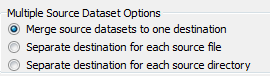
to specify multiple datasets. - Click Separate destination for each source file.
- Select a Writer format.
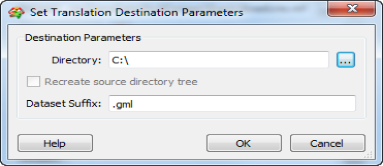
- Click the Browse button beside the Dataset text box.
- Specify the folder for the output files and (optionally) a suffix to append to the dataset (for example, a file-type suffix).
- Click OK to close the dialog box.
- Click OK in the Set Translation Parameters dialog to start the translation.
This will enable the Multiple Source Dataset Options:
Saving a Batch Script to Run Later
- Select Translation > Create Batch Script.
- Follow the steps above to specify the translation parameters.
- Type or browse for the location of the batch translation file.
- Click OK.
This displays the Set Batch Script Parameters dialog with an additional field to accommodate saving a batch script.
At the bottom of the dialog, you will see a Batch Script area, with a filename field.
Note that batch files consist of both a .tcl file and a .bat file. Both files are needed to run the batch translation.

The batch script will be saved.
Running the Scripts Outside of FME
Go to the Windows DOS prompt and either type the name of the .bat file or type fme tclfilename.tcl.