Application Schema
XSD/ADE Selection
 CityGML Version
- CityGML 3.0 (default) – Uses the CityGML v3.0 schemas and their dependent XSD documents.
- Other – The schemas are specified explicitly using the Application Schema and/or xsi:schemaLocation parameters, as outlined below.
Application Schema
This optional parameter specifies the location of the CityGML XSD Schema documents.
xsi:schemaLocation
This optional parameter specifies the location of the XSD Schema documents via whitespace-separated namespace-URI and xsd-location-URL pairs, following the same syntax as the xsi:schemaLocation attribute.
Settings
XML Namespace Declarations
The legal values for this parameter are white-space-separated XML namespace declarations as they would appear in an XML element.
This parameter allows different namespace declarations to be used, other than the ones extracted from the parsed XSD documents.
Add XML Namespace Prefix to
This parameter controls whether XML Namespace prefixes are applied to feature types, attributes, or both. The prefix will be separated from the names by an underscore.
- Feature Types – Includes the prefixes in the feature types. Setting this parameter to Feature Types is necessary if the XSD Schemas contains feature types with the same name in different namespaces.
- Feature Types (On Conflict) (default) – Includes the prefixes in feature types only when the XSD Schemas contain feature types with the same name in different namespaces.
- Feature Types and Attributes – Includes the prefixes in both the feature types and attributes.
Map Complex Properties as
Specifies whether GML properties that are defined as a complex type with complex content (that is, those that have embedded child elements) should be expanded into Nested Attributes within FME features, or stored as XML Fragments.
- If set to XML Fragments, complex properties are not expanded. Instead, their entire content is stored as XML text within a single attribute. This produces smaller, simpler feature structures and is suitable when detailed access to individual child elements is not needed.
- If set to Nested Attributes, complex properties are expanded into nested list attributes wherever possible, exposing their child elements directly as FME attributes. This option is useful when detailed access to individual elements or values is required for mapping or transformation, although it can produce large or deeply nested attribute structures. When using Nested Attributes, some complex properties that contain embedded objects or geometry elements may still be stored as XML fragments, depending on schema structure or other mapping limits.
Certain complex properties, such as those that are recursively defined or that would otherwise cause circular references, are always mapped as XML fragments regardless of this setting.
Limit Number of Lists in Nested Attributes
This optional parameter applies only when Map Complex Properties As is set to Nested Attributes.
It limits how many consecutive levels of multivalued nested list attributes (for example, lists within lists) are preserved before deeper levels are converted into XML fragments. When the nesting of list elements exceeds this number, expansion automatically stops at that level and deeper content is stored as XML fragments. This helps prevent extremely deep or repetitive data hierarchies from consuming excessive memory or producing unwieldy nested attribute structures.
If this parameter is not specified, all levels of nested lists are expanded up to the general safety limits. Setting a lower value restricts expansion to shallower lists, while a higher value allows deeper nesting at the cost of larger, more complex features.
In contrast, setting Map Complex Properties As to XML Fragments stores all complex properties as XML text after any embedded geometries or objects have been interpreted.
Validate Dataset
Validates the generated output against the XSD Schema.
Formatting Parameters
Pretty Print
Setting this parameter to Yes ensures the output is neatly formatted. This promotes easier reading on screen and in print output. Note, however, that it also produces a considerably larger output file size due to the added whitespace.
- Indent Size – Select a value from 0 to 9.
- Replace Tabs with Spaces – By default the Tab character is used to for indentations. Select Yes to substitute the Tab character with a Space.
- Indent Text – By default, the text in a tag is left untouched. Select Yes to include pretty printing in the text.
Spatial
Coordinate System
Coordinate systems may be extracted from input feature data sources, may come predefined with FME, or may be user-defined. FME allows different output and input coordinate systems, and performs the required coordinate conversions when necessary.
If a coordinate system is specified in both the source format and the workspace, the coordinate system in the workspace is used. The coordinate system specified in the source format is not used, and a warning is logged. If a source coordinate system is not specified in the workspace and the format or system does not store coordinate system information, then the coordinate system is not set for the features that are read.
If a destination coordinate system is set and the feature has been tagged with a coordinate system, then a coordinate system conversion is performed to put the feature into the destination system. This happens right before the feature enters into the writer.
If the destination coordinate system was not set, then the features are written out in their original coordinate system.
If a destination coordinate system is set, but the source coordinate system was not specified in the workspace or stored in the source format, then no conversion is performed. The features are simply tagged with the output system name before being written to the output dataset.
For systems that know their coordinate system, the Coordinate System field will display Read from Source and FME will read the coordinate system from the source dataset. For most other input sources, the field will display Unknown (which simply means that FME will use default values). In most cases, the default value is all you'll need to perform the translation.
You can always choose to override the defaults and choose a new coordinate system. Select More Coordinate Systems from the drop-down menu to open the Coordinate System Gallery.
Changing a Reprojection
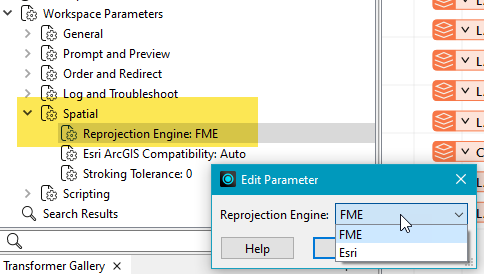
To perform a reprojection, FME typically uses the CS-MAP reprojection engine, which includes definitions for thousands of coordinate systems, with a large variety of projections, datums, ellipsoids, and units. However, GIS applications have slightly different algorithms for reprojecting data between different coordinate systems. To ensure that the data FME writes matches exactly to your existing data, you can use the reprojection engine from a different application.
To change the reprojection engine, Select Workspace Parameters > Spatial > Reprojection Engine. In the example shown, you can select Esri (but the selection here depends on your installed applications):
- The coordinate systems file coordsys.db in the FME installation folder contains the names and descriptions of all predefined coordinate systems.
- Some users may wish to use coordinate systems that do not ship with FME, and in those cases, FME also supports custom coordinate systems.
- Learn more about Working with Coordinate Systems in FME.
GML srsName
This parameter can overwrite the CRS value that is written in the GML instance’s srsName attributes.
By default, the FME coordinate system name in a feature is transferred directly onto the srsName attribute. Using this parameter allows you to provide your own URN CRS string for the srsName attributes.
GML SRS Axis Order
Overrides the axis order when writing coordinate tuples in a CityGML <pos> or <posList> element.
Valid values:
- 1,2
- 2,1
- 1,2,3
- 2,1,3
There is no default value.