
FME Form: 2026.1
Select View > Window Layout > Edit History.
The Edit History window is a list of every edit made to a workspace in the current view, until the workspace is closed. The left panel of the window describes each edit. The right panel shows the canvas view of any edit selected on the left. For table modifications or transformer upgrades, the right panel displays views of both before and after the edit was performed.
Mouse-over to view screenshot:
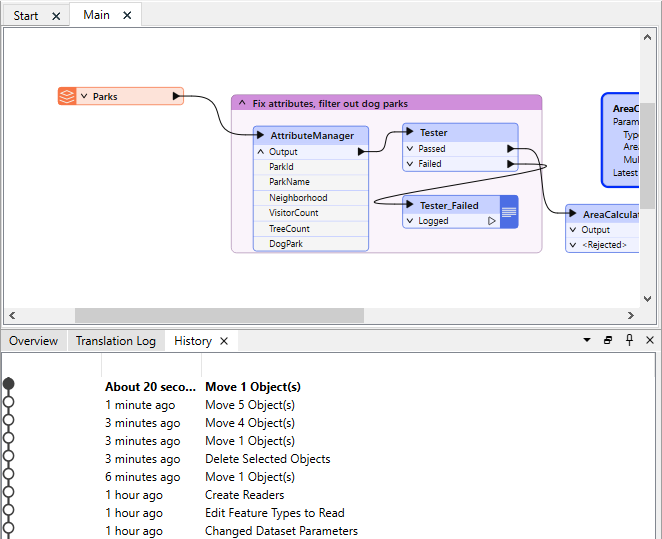
Using the Edit History window, you can revert the state of a workspace to a particular edit: Mouse-over the edit to which you want to revert and double-click it. Alternatively, select the edits from the drop-downs of the Undo or Redo buttons on the Toolbar. The workspace reverts to the state of that edit.
Edits that were made subsequent to the reverted state are still maintained, so you can always revert back to a later edit. Further edits are recorded in a parallel node in the Edit History window, creating a tree structure of edits, to which you can also view and revert.
Saving the workspace does not affect the entries in the Edit History window, as long as the workspace remains open.
Changing History Entries
You can change the descriptions of entries in the Edit History window so they are more meaningful to you when you need to reference them. Right-click on an entry and select Edit Description or enter Ctrl+E (Windows), or Ctrl+e (Mac). To reset the description to its original form, right-click on it and select Reset Description.