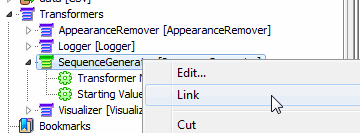
When you create a custom transformer, its default properties are to embed it into any workspace.
When a transformer is embedded in a workspace, all of its properties are also copied to the workspace. However, you can also choose to link to the transformer (which is useful if you frequently update the transformer and you use it in many different workspaces).
Note: Remember that when you link to a transformer, and you move or share the workspace to which it is linked, you must also move or send the transformer separately. If you open a workspace containing a link to a custom transformer that is not installed on your system, you will see an error. This is not always easy to spot, since custom transformers can be embedded inside one another. Either way, you will need to obtain any missing custom transformers to run the workspace properly.
Embedded transformers are colored green in the Navigator:
Linked transformers are colored light blue in the Navigator: 
Right-click on the transformer name in the Navigator, and select Link. The transformer icon color changes to light-blue to indicate it is now linked instead of embedded.